

The partner that signs a message has to send the associated certificate (public key) to the other partner so that partner can verify the message.
The partner that encrypts a message has to receive the certificate (public key) to from the partner expected to decrypt the message.
The procedure for sending the required certificate file to a partner depends on whether the key/certificate pair is already in the CDS.
The following figure shows the steps for sharing certificate files.
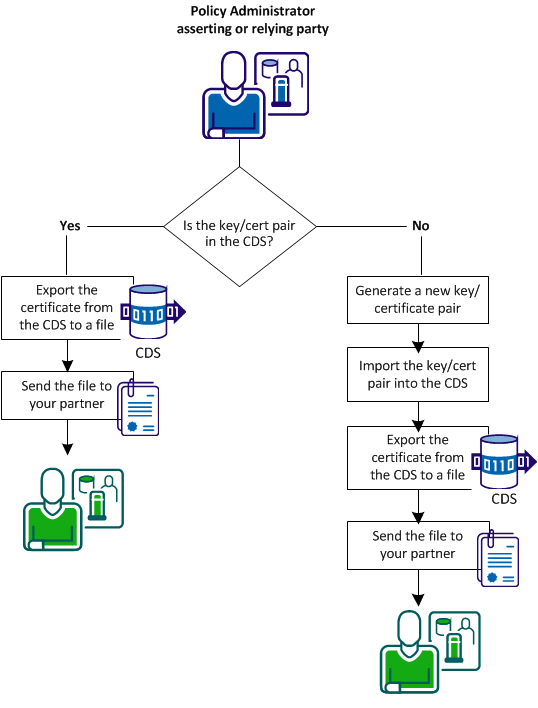
Follow these steps:
If you do not have a key/certificate pair in the certificate data store, request one from a trusted Certificate Authority. When the CA returns a signed certificate response, import it into the certificate data store.
Generate a certificate request using the Administrative UI or using a third-party tool.
When you create a request using the Administrative UI, CA SiteMinder® Federation Standalone generates a private key and a self–signed certificate pair. CA SiteMinder® Federation Standalone stores this pair in the certificate data store. Using the generated request, contact a Certificate Authority and fill out the CA certificate request form, pasting the contents of the generated request into the form.
The CA issues a signed certificate response, usually in PKCS #7 format. You can import the signed certificate response into the certificate data store. After the signed certificate response is imported, the existing self–signed certificate entry of the same alias is replaced.
Follow these steps:
Note: Click Help for a description of fields, controls, and their respective requirements.
A file that conforms to the PKCS #10 specification is generated.
The browser prompts you to save or open the file, which contains the certificate request. If you do not save this file (or open it and extract the text), CA SiteMinder® Federation Standalone still generates the private key and self–signed certificate pair. Generate a new certificate signing request, using the Generate CSR feature, to get a new request file for the private key.
The procedure for importing the key/certificate pair varies. Refer to the appropriate procedure:
You have a local file on your system.
If you generated a key/certificate pair from the Administrative UI, import the certificate from the signed response sent by the Certificate Authority.
If you do not have a key/certificate pair in the certificate data store, import one from an existing .p12 or .pfx file.
CA SiteMinder® Federation Standalone treats a certificate that you import as a trusted certificate. The exceptions are self-signed certificates:
Follow these steps:
The View Certificates and Private Keys dialog opens.
Note: You can click Help for a description of fields, controls, and their respective requirements.
Be aware of the following items as you complete the wizard:
Otherwise, accept the default No setting to import the certificate as a trusted certificate that is available when configuring partnerships.
The standard extension for a file in DER or PEM format is *.crt or *.cer.
The key/certificate pair is imported into the certificate data store.
After completing a certificate request and sending it to the Certificate Authority, the Certificate Authority issues a signed certificate response.
Import the signed certificate into the certificate data store to replace the existing self-signed certificate entry of the same alias.
Follow these steps:
The View Certificates and Private Keys dialog opens.
The wizard for importing certificates and keys displays.
Note: Click Help for a description of fields, controls, and their respective requirements.
The signed certificate is imported into the certificate data store and the self-signed certificate is replaced.
You can export a private key/certificate pair to a file and send the certificate file (public key) to your federation partner. The partner can use the certificate to verify the signature of assertion responses created with the associated private key or encrypt a response to be decrypted with the associated private key.
Important! If you export the private key as part of a backup, never share it with anyone else.
Follow these steps:
The View Certificates and Private Key window displays.
The Export Key Store Entry dialog displays.
Note: Click Help for a description of fields, controls, and their respective requirements.
You are prompted to open or save the file on the local system.
CA SiteMinder® Federation Standalone generates the encoded file content representing the key or certificate.
After exporting the encoded file with the certificate, send this file to your federation partner. Your partner has to import this certificate to handle verification or encryption of federation messages.
|
Copyright © 2014 CA.
All rights reserved.
|
|