

CA SiteMinder® Federation Standalone uses a key/certificate pair and trusted certificates for a number of functions. For CA SiteMinder® Federation Standalone to perform tasks that use keys and certificates, these items must be in the certificate data store.
If you do not have a key/certificate pair in the certificate data store, you have two options:
To generate a new key/certificate pair, request a certificate from a trusted Certificate Authority and then import the signed certificate response that the authority returns.
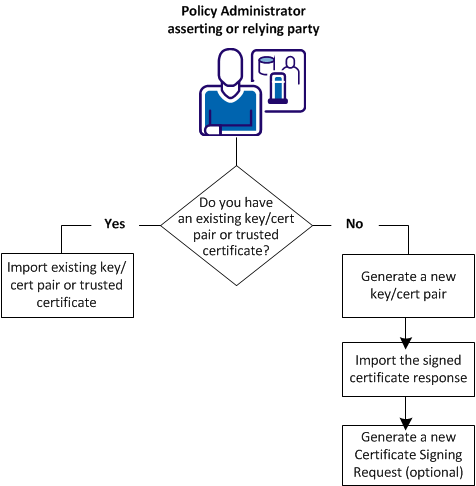
The following figure shows the steps for each method of obtaining a key/certificate pair or trusted certificate.
If you do not have a key/certificate pair in the certificate data store, import one from an existing .p12 or .pfx file.
CA SiteMinder® Federation Standalone treats a certificate that you import as a trusted certificate. The exceptions are self-signed certificates:
Follow these steps:
The View Certificates and Private Keys dialog opens.
Note: You can click Help for a description of fields, controls, and their respective requirements.
Be aware of the following items as you complete the wizard:
Otherwise, accept the default No setting to import the certificate as a trusted certificate that is available when configuring partnerships.
The standard extension for a file in DER or PEM format is *.crt or *.cer.
The key/certificate pair is imported into the certificate data store.
If you do not have a key/certificate pair in the certificate data store, you can generate a new key/certificate pair.
Perform the following steps:
If you do not have a key/certificate pair in the certificate data store, request one from a trusted Certificate Authority. When the CA returns a signed certificate response, import it into the certificate data store.
When you generate a certificate request, CA SiteMinder® Federation Standalone generates a private key and a self–signed certificate pair. CA SiteMinder® Federation Standalone stores this pair in the certificate data store. Using the generated request, contact a Certificate Authority and fill out the CA certificate request form, pasting the contents of the generated request into the form.
The CA issues a signed certificate response, usually in PKCS #7 format. You can import the signed certificate response into the certificate data store. After the signed certificate response is imported, the existing self–signed certificate entry of the same alias is replaced.
Follow these steps:
The View Certificates and Private Keys dialog opens.
The Request Certificate dialog opens.
Note: Click Help for a description of fields, controls, and their respective requirements.
A file that conforms to the PKCS #10 specification is generated.
The browser prompts you to save or open the file, which contains the certificate request. If you do not save this file (or open it and extract the text), CA SiteMinder® Federation Standalone still generates the private key and self–signed certificate pair. Generate a new certificate signing request, using the Generate CSR feature, to get a new request file for the private key.
After completing a certificate request and sending it to the Certificate Authority, the Certificate Authority issues a signed certificate response.
Import the signed certificate into the certificate data store to replace the existing self-signed certificate entry of the same alias.
Follow these steps:
The View Certificates and Private Keys dialog opens.
The wizard for importing certificates and keys displays.
Note: Click Help for a description of fields, controls, and their respective requirements.
The signed certificate is imported into the certificate data store and the self-signed certificate is replaced.
A certificate signing request (CSR) is a message that you send to a Certificate Authority to apply for a identity certificate. Before you can generate a CSR, CA SiteMinder® Federation Standalone has to generate a key/certificate pair. The certificate is then placed in the CSR.
Generate a new request for an existing private key because:
You can generate a new CSR for a self-signed or CA-signed private key/certificate pair. The private key always generates an identical CSR without modifying the existing private key.
Follow these steps:
The Certificate and Private Key List displays.
A file that conforms to the PKCS #10 specification is generated and CA SiteMinder® Federation Standalone prompts you to save the CSR.
After you complete the certificate request process, the Certificate Authority issues a signed certificate response that you import into the certificate data store. CA SiteMinder® Federation Standalone replaces the existing certificate entry of the same alias with the newly imported certificate.
|
Copyright © 2014 CA.
All rights reserved.
|
|