

A Certificate Revocation List (CRL) is issued by a Certificate Authority to its subscribers. The list contains serial numbers of certificates that are invalid or have been revoked. When a request to access a server is received, the server allows or denies access based on the CRL.
CA SiteMinder® Federation Standalone can leverage CRLs for its certificate functions. For CA SiteMinder® Federation Standalone to use a CRL, the certificate data store must point to a current CRL. If CA SiteMinder® Federation Standalone tries using a revoked partner certificate, you see an error message. For legacy federation, the error message is in the SAML assertion. The message indicates that authentication failed.
CA SiteMinder® Federation Standalone supports the following CRL features:
CA SiteMinder® Federation Standalone stores CRLs in the certificate data store. File-based CRLs must be in Base64 or binary encoding. LDAP CRLs must be in binary encoding. Additionally, LDAP CRLs must include CRL data in one of the following attributes:
When a Certificate Authority publishes an LDAP CRL, it must return the CRL data in binary format, in accordance with RFC4522 and RFC4523. Otherwise, CA SiteMinder® Federation Standalone cannot use it.
CA SiteMinder® Federation Standalone does not validate an SSL server certificate against a CRL. The web server where CA SiteMinder® Federation Standalone is installed manages the SSL server certificate.
You are not required to have a CRL for each root CA in the system. If there is no CRL for the root CA, CA SiteMinder® Federation Standalone assumes that all certificates signed by that CA are trusted certificates.
The following figure shows the procedures for managing CRLs.
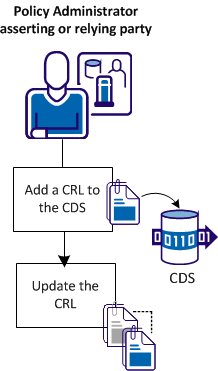
The CRL configuration steps are as follows:
Ensure that only valid certificates are being used for federation-related PKI functions by using CRLs against which certificates can be checked.
Important! CA SiteMinder® Federation Standalone explicitly requests LDAP CRLs in binary transfer encoding, using the certificateRevocationList;binary LDAP attribute. This means that the CRL data must be stored in this attribute. When a Certificate Authority (CA) publishes a CRL using the LDAP protocol, it must return the CRL data in binary format, in accordance with RFC4522 and RFC4523.
For CA SiteMinder® Federation Standalone to use a CRL, specify the CRL location.
Follow these steps:
The list of available CRL locations is displayed.
The Add Certificate Revocation List is displayed.
Note: You can click Help for a description of fields, controls, and their respective requirements.
The location has to be a file path for a file CRL and an LDAP search path for an LDAP CRL.
The CRL is now added to the certificate data store.
Update a CRL to verify that the certificate data in use is current.
Follow these steps:
The Certificate Settings dialog displays.
Note: Click Help for a description of fields, controls, and their respective requirements.
You can complete two other tasks to manage certificate validity checking (CRL or OCSP):
The certificate cache refresh period indicates how often the certificate data store updates the certificate data in the policy store. Certificate data is cached in memory to improve CA SiteMinder® performance. Refresh the information in memory so that the data is current.
The default revocation grace period is the delay from when a certificate is revoked and the time the certificate becomes invalid. During the grace period, the system can use a revoked certificate before it becomes invalid. After the certificate becomes invalid, it is no longer active and CA SiteMinder® Federation Standalone cannot use it.
If you do not specify a value for the CRL or OCSP responder grace period when adding these components, CA SiteMinder® Federation Standalone uses the default grace period. The individual grace period settings for a CRL or OCSP take precedence over this default grace period value.
Follow these steps:
The Certificate Settings dialog displays.
Note: Click Help for a description of fields, controls, and their respective requirements.
|
Copyright © 2014 CA.
All rights reserved.
|
|