

This section lists examples of using custom code to populate fields with dynamic values as part of the CreateRemedyTicket process. The examples use alert attributes and BMC Remedy attributes to create unique values for BMC Remedy fields that are based on CA SOI alerts.
Alert attribute values are in the format Process.variableName and BMC Remedy values are in the format Remedy*.variableName. Substitute HelpDesk or ITSM in place of the asterisk. The Remedy* variable is a ValueMap data type variable, so you must reference its elements as Remedy*.variableName for the code to work.
Example: Map CA SOI Service Priority to Remedy Urgency
The following example maps the CA SOI service priority field to the BMC Remedy Urgency field:
if (Process.priority != undefined) {
       if (Process.priority == 10)
              RemedyITSM.Urgency = "1-Critical";
       else if ( Process.priority == 9)
              RemedyITSM.Urgency = "2-High";
       else if ( Process.priority == 8)
              RemedyITSM.Urgency = "3-Medium";
      else if ( Process.priority == 7)
              RemedyITSM.Urgency = "4-Low";
      else
	  RemedyITSM.Urgency = "3-Medium";
}

}
Example: Customization using Datasets Array
The following example replaces the RemedyITSM.Impact variable with a customized Impact field (Process.CustomImpact) by importing the values from the Mapping Dataset to the current process:
Process.ImpactMap = Datasets["Mapping Dataset"].Impact;

if (Process.ImpactMap[Process.impact] != undefined)
{
       Process.CustomImpact = Process.ImpactMap[Process.impact];
}
else
{
       Process.CustomImpact =RemedyITSM.Impact;
}
The syntax for using a dataset is as follows:
Dataset["Dataset Name"].variableName
The Impact variable is an Array type, so the first value is accessible using an index of 0. View the Mapping Dataset used in this example by double-clicking the MappingDataset process from a listing of CA Remedy Gateway integration processes.
Example: Customization using Datasets ValueMap
The following example replaces the RemedyITSM.ReportedSource variable with the customized source field Process.CustomSource by importing the EventSource value from the Mapping Dataset to the current process:
Process.SourceMap = Datasets["Mapping Dataset"].EventSource;

If (Process.event_source != undefined)
{
       If (Process.SourceMap[Process.event_source] != undefined)
       {              /* event_source value from SAM */
              Process.CustomSource =
              Process.SourceMap[Process.event_source];
       }
       else
              Process.CustomSource = Process.SourceMap.default;

}
else
{
       Process.CustomSource = RemedyITSM.ReportedSource;
}
Process.SourceMap[Process.event_source] sets Process.CustomSource as Systems Management if Process.event_source is spectrum:
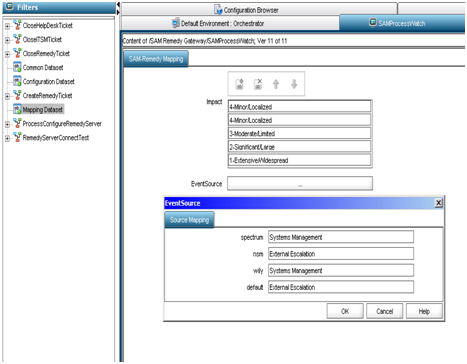
To access the EventSource dialog, click the EventSource field in the Mapping Dataset dialog.
Example: Populating custom BMC Remedy fields dynamically
The following example replaces the Process.Keys and Process.Values fields with the customized arrays CustomTags and CustomValues:
// create tags and value arrays of same size
Process.CustomTags = new Array();
Process.CustomTags.length = 2;
Process.CustomValues = new Array();
Process.CustomValues.length = 2;

// create tag element names
Process.CustomTags[0] = "Root_Cause";
Process.CustomTags[1] = "Acknowledged";

// assign valid values to the tags from SAM alert values
// make sure values being sent to Remedy are values Remedy will accept for these fields
Process.CustomValues[0] = Process.rootcause;
Process.CustomValues[1] = Process.acknowledged;
Are you enter the code, rename the Process.Keys array to Process.CustomTags and the Process.Values array to Process.CustomValues in the Web Service User Parameters pane of the CreateRemedyTicket process. For more information, see Add Custom JavaScript (Add Custom JavaScript, Add Custom JavaScript).
|
Copyright © 2013 CA.
All rights reserved.
|
|