

CA SSO Agent for SAP Guide › Configuring SAP Web AS 7.0 and CA SSO Agent for SAP to Work Together
Configuring SAP Web AS 7.0 and CA SSO Agent for SAP to Work Together
This section contains the following topics:
Guidelines for Updating CA SSO Policies
Change the Configuration of the SAP J2EE Engine
Deploy and View SiteMinderLoginModule.sca
Configure SiteMinderLoginModule
Create an Authentication Template
Select Applications to Use the Authentication Template
Set the CAPKIHOME Environment Variable
How to Confirm your CA SSO Protection
Guidelines for Updating CA SSO Policies
Guidelines for updating the CA SSO policies:
- Do not modify the CA SSO policies configured in Configure CA Single Sign-On Policies. The CA SSO login module uses these policies for Tier 2 authentication.
- Create additional policies for protecting each of the Web AS applications and the Enterprise Portal. See Configure CA Single Sign-On Policies.
- The name of the protected resource for Web AS applications depends on the particular Web AS application. For Enterprise Portal, /irj/ is usually the protected resource. For webdynpro applications, protect the /web-dynpro/ resource.
- Verify that all users accessing the Web AS or Enterprise Portal applications are included in the policies you created for the /smwebasagent/ validation realm.
More information:
Configure CA SSO Policies
Change the Configuration of the SAP J2EE Engine
The J2EE engine of the SAP Web AS server needs some configuration changes to work with CA SSO:
Follow these steps:
- Access the SAP J2EE Engine Config Tool:
- Add the following property to the Java Parameters field:
Dsmwebas.home
- Set the value of the previous property to the directory of the SmWebASSSO.conf file.
Note: If the path to the file contains spaces, surround the path with double quotation marks, for example: "file_path".
Deploy and View SiteMinderLoginModule.sca
An SCA is a SAP Component Archive that is used to deploy components with NetWeaver.
Deploy SiteMinderLoginModule.sca and use the J2EE Engine Visual Administrator to view it.
For more information about using an SCA, go to the SAP Help Portal web site, and then search the documentation for the following phrase:
SAP-Specific Deployment as SCA Using SDM
Prerequisites
To deploy the SiteMinderLoginModule.sca, your environment requires the following prerequisites:
- SiteMinderLoginModule.sca must be available.
- Install and start the SDM server on the host that is accessed by the users.
Deploy SiteMinderLoginModule.sca
Perform the following procedure to deploy SiteMinderLoginModule.sca.
Follow these steps:
- Start the SDM GUI, by executing one of the following script files in the usr/sap/SID/instance_name/SDM/Program directory.
- RemoteGui.bat for Windows hosts
- RemoteGui.sh for UNIX hosts
- Log in to the SDM server using the following steps:
- Select SDM GUI, Login.
- Enter the SDM server password. If the SDM password was not explicitly specified during the SDM installation, the default is sdm.
- Optionally, enter a description of the user who is logging in in the User Description field.
- Enter the SDM server hostname and port.
- Select Login. The SDM Repository in the SAP - Software Deployment Manager GUI appears.
- Click the Deployment tab.
The Step 1 of 4: Choose SCAs/SDAs to be deployed screen appears.
- Click the Add SCA button, which is the first button to the left.
The Choose window appears.
- Browse to the location of SiteMinderLoginModule.sca, and select it. Click Next.
The required module is displayed on the window.
- Click Next.
The Repository Preview pane appears.
- Click Next.
The message Step 3 of 4 SDM is Ready to Deploy - Start Deployment appears.
- Click Start.
Deployment starts, and a progress bar indicates the progress of the operation.
- When the Overall Deployment Progress is 100 percent, click Confirm.
- Disconnect and Exit from SDM GUI by either clicking the Disconnect button or selecting the appropriate choice in the menu.
The SiteMinderLoginModule is successfully deployed.
View the Deployed SiteMinderLoginModule.sca
Perform the following procedure to view SiteMinderLoginModule deployed as an SCA.
Follow these steps:
- In the Visual Administrator GUI of J2EE Engine, select Global Configuration, cluster, SID, server_instance..., Libraries.
The Global Configuration pane appears.
- Select the SiteMinderLoginModule node.
A window pane appears displaying the CA SSO jars contained in the JARs Contained field, and a reference to the security interface in the Library Reference field.
Configure SiteMinderLoginModule
Perform the following procedure to configure the SiteMinderLoginModule.
Follow these steps:
- Open the J2EE Engine Visual Administrator console and, on the Cluster tab, navigate to Server, Services, Security Provider
- Select the Runtime tab and the User Management tab.
- Click the Pencil button to enable edit mode.
- Click the Manage Security Stores button.
- Select the UME User Store for the User Store in use in the current Web AS environment.
- Click the Add Login Module button.
- When the dialog is displayed, click OK (no need to specify anything in this dialog).
- In the Add Login Module dialog, specify the following class name:
com.netegrity.siteminder.sap.webas.jaas.SiteMinderLoginModule
- Specify the display name, for example, SiteMinderLoginModule, and a description for the login module, and then click OK.
- Verify that Security Provider is still selected on the Cluster tab, and then click the Properties tab.
- For the LoginModuleClassLoaders property, enter the following value:
library:ca.com~SiteMinderLoginModule
- Click the Update button.
- Click the Save icon in the toolbar above the Properties tab.
- When you are prompted, restart the server.
- Restart the J2EE engine.
Create an Authentication Template
Perform the following procedure to create an authentication template.
Follow these steps:
- Open the J2EE Engine Visual Administrator console.
- On the Cluster tab, navigate to and select Server, Services, Security Provider
- Click the Runtime tab and click the Policy Configurations tab.
- Click the Pencil button to enable edit mode.
- At the bottom of the Components panel, click the Add button.
- In the dialog, enter the name for the new authentication template (new policy configuration), for example, siteminder. Click OK.
- In the Components panel, select the siteminder authentication template that you created.
- Click the Authentication tab for the template and click the Add New button.
- Add the following information to the template:
|
Login Modules
|
Flag
|
Options
|
|
SiteMinderLoginModule
|
REQUISITE if SiteMinderLoginModule is configured as the only Login Module.
Typically OPTIONAL if other Login Modules are also configured. However, other settings may be used based on the specific requirements of your deployment.
|
(Optional) redirectOnError
If set to True (the default), SiteMinderLoginModule redirects users to the Error page or a 403 error response that is sent on authentication failure.
If set to False, SiteMinderLoginModule does not redirect users to the Error page or a 403 error response that is sent on authentication failure.
Note: If multiple Login Modules are configured and the OPTIONAL flag is set, redirectOnError to False.
|
|
com.sap.security.core.server.jaas.CreateTicketLoginModule
|
REQUIRED
|
ume.configuration.active
Note: Set this option to True.
|
Select Applications to Use the Authentication Template
Applications deployed on the Web AS J2EE engine can use the Authentication template.
Follow these steps:
- Verify that the application you want to protect (with this product) is deployed on the Web AS J2EE engine.
- In the Visual Administrator console, select the Security Provider service from the Cluster list.
- Click the Runtime tab and the Policy Configurations tab.
- From the Components list, select the application to protect.
- In the Authentication tab, click the drop-down list to select the siteminder authentication template.
Set the CAPKIHOME Environment Variable
In UNIX, the [insert SiteMinder version number] Agent for SAP needs the CAPKIHOME environment variable.
Follow these steps:
- Open <SID>_<Java_Instance>_<hostname> file available in the following location:
<SAP_home>/<SID>SYS/profile/
- SAP home
-
Specifies the installation directory of SAP.
- Add the following line to the file:
SETENV_<xx> = CAPKIHOME=<Agent_install_dir>/sapwebas/CAPKI
Note: If the above profile has 6 SETENV variables (SETENV_00 to SETENV_05), then set “<xx>” as 06.
- Restart SAP Web AS.
How to Confirm your CA SSO Protection
To confirm that this product is protecting the resources on your SAP Web Application server, use the following process:
- Deploy the test application.
- Configure the test application.
- Configure an authentication scheme for the Enterprise portal.
- Configure your CA SSO settings.
Deploy the Test Application
This product comes with a test application, testapp.ear that you deploy to confirm that CA SSO is protecting your SAP Web AS server.
Follow these steps:
- Navigate to the following directory:
usr/sap/SID/INSTANCE_NAME/j2ee/deploying
- Run the appropriate script for your operating environment:
- DeployTool.bat (Windows)
- DeployTool (UNIX)
- Click Project, New Project.
The New Project dialog appears.
- Navigate to a directory where you want to save your project. Enter a name for your project file, and then click OK.
The New Project dialog closes. The full path to your project file appears in the title bar.
- Click the Deployer tab.
The menu names in the menu bar change.
- Click Deploy, Connect.
The login dialog appears.
- Enter your SAP Administrator credentials, and then click Connect.
The Visual Administrator tool appears.
- Click Deploy, Ear, Load Ear
The Choose ear file dialog appears.
- Navigate to the following file:
CA\webasagent\sapwebas\samples\testapp.ear
- Click OK.
The Choose ear file dialog closes.
- Click Deploy, Deployment, Deploy Ear.
The test application is deployed. A confirmation dialog appears.
- Click Yes to start the application.
The test application is started.
Configure the Test Application
After the test application is deployed, add users to the TestAppSecurityRole that is configured for the test application.
Follow these steps:
- Open the J2EE Engine Visual Admin console. In the left pane, click Server, Services, Security Provider.
- In the right pane, click the Runtime tab, and then click the Policy Configurations tab.
- Click the testapp application displayed in the Components list.
- On the right pane, click the Security Roles tab, and then select the TestAppSecurityRole.
- From within the Mappings group-box, click Add, and then select users from the user tree. Click OK.
Note: Verify that the WASUSERNAME response attribute returns this username.
The users that you selected appear in the Users list box.
- Click the Authentication tab and select the authentication template (see Selecting Applications to Use the Authentication Template).
- Configure a CA SSO Policy that contains a realm for the application in the Policy Server with the resource /testapp/.
- Create the rules and responses and bind them to the CA SSO policy.
- Configure the front-end web server to forward this URL (/testapp/) to the Web AS J2EE Engine. For proxy configuration details for the respective web server, as detailed in Front‑End Web Server Configuration.
- Access the following URL:
http://webserver:port/testapp/testconfig.jsp
- Enter valid CA SSO credentials for authentication.
Upon successful authentication, the test page displays the following HTTP headers:
- WASUSERNAME
- SM_SERVERSESSIONID or SMSERVERSESSIONID
- SM_SERVERSESSIONSPEC or SMSERVERSESSIONSPEC
- NPS_SESSION_LINKER
- Refresh the page, and then verify that the following cookies are visible:
SMSESSION,
JSESSIONID
MYSAPSSO2
- Verify that the user principal displayed matches the WASUSERNAME.
The test application is configured.
More information:
Configure CA SSO Policies
Configure the Enterprise Portal Authentication Scheme
To integrate the SiteMinderLoginmodule with the Enterprise Portal, create an AuthScheme.
Follow these steps:
- Verify that this product is deployed on the Web AS J2EE Engine, as described in the following sections of this guide:
- Create a backup of the existing authschemes.xml file, as follows:
- In the Web AS J2EE Engine Visual Administrator console, select the Configuration Adapter service under the Server node.
- In the Display Configuration tab, scroll to the following:
cluster_data, server, persistent, com.sap.security.core.ume.service, authschemes.xml
- Double-click authschemes.xml, and click the Download button to keep a copy of the file.
- Edit the authschemes.xml file:
- Click the Edit button to switch to the edit mode. At the prompt, click Yes.
- Click the Write button (pencil icon) to open authschemes.xml.
- Create a new authscheme by copying the elements of the existing uidpwdlogon authscheme. Rename the new authscheme to SiteMinder.
See the following example:
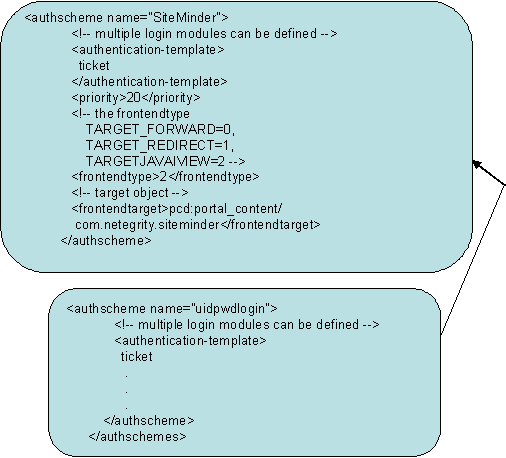
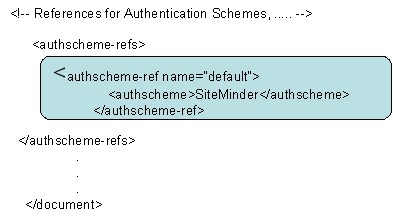
- Modify frontendtarget of the SiteMinder authscheme to point to a URL iView, which refers to an error page. This page is presented to the user if authentication is unsuccessful or if the authentication stack fails. For details on creating a URL iView, see the SAP documentation.
Note: The value of frontendtarget given here is just for reference. Change it for each user environment. Also if the frontendtarget value given here is an iView, the allow the Everyone group Read access to it.
- Modify the default authscheme-ref so that it points to the SiteMinder authscheme.
- Click OK to save changes to the authschemes.xml file.
- Navigate to Server, Services, and select Security Provider.
- Click the Runtime tab and the Select Policy Configurations tab.
- (Optional) Remove other Login Modules (BasicPasswordLoginModule, EvaluateTicketLoginModule) from the ticket authentication template stack.
- Add the following modules to the ticket authentication template stack, in the following order and after the EvaluateTicketLoginModule, if present:
- SiteMinderLoginModule
- CreateTicketLoginModule
- Do one of the following tasks:
- Restart the Web AS J2EE engine for the changes to take effect.
How to Configure the CA SSO Settings
To configure CA SSO to protect the Enterprise portal, use the following process:
- If you have not already done so, add the Enterprise Portal configuration settings for this product.
- Create a realm for the resource /irj/ in the Policy Server with the associated rules and responses.
- Verify that the WASUSERNAME response attribute configured in this CA SSO policy is defined to return a valid Enterprise Portal user ID for the corresponding CA SSO user.
- Access the following URL:
http://webserver:port/irj/portal
- When challenged, enter CA SSO credentials for authentication.
On successful authentication, the portal page is displayed.
More information:
Configure CA SSO Policies
Configure the LogOff URL of the Enterprise Portal (7.0)
Configure the LogOff URL of the Enterprise Portal (version 7.0) to the LogOffURI parameter of the Web Agent.
Note: For more information about configuring the LogOffURI parameter of the Web Agent, see the CA SSO documentation.
Follow these steps:
- Run the Config Tool.
- Click Cluster data, Global server configuration, services, com.sap.security.core.ume.service.
- Set the value of the ume.logoff.redirect.url key to the URL of the LogOff page that you want to use for the Enterprise Portal.
- Restart the WebAS J2EE engine.
The LogOff URL is configured.
Copyright © 2015 CA Technologies.
All rights reserved.
|
|