

Upgrade Examples › Example: Upgrade a Non-clustered Orchestrator from 4.1 SP01 to Release 4.2 on Windows
Example: Upgrade a Non-clustered Orchestrator from 4.1 SP01 to Release 4.2 on Windows
The following example provides selected screenshots that resemble what you see when you upgrade a non-clustered Orchestrator from 4.1 SP01 to Release 4.2 on a Windows operating system. If you are not familiar with the CA Process Automation installation wizard, you may find this useful.
These are the steps:
- Log in to the host on which the Domain Orchestrator is installed.
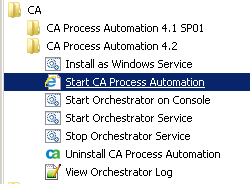
- Open the CA Process Automation release you are upgrading. For example, from the Start menu, CA, CA Process Automation 4.1 SP01, Start CA Process Automation.
Note: This is an easy way to verify that CA EEM is running and that your database server is active. This is a prerequisite to upgrade.
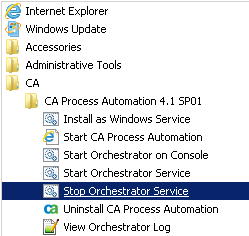
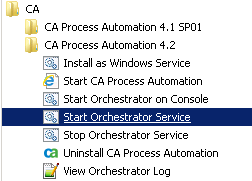
- Log out of CA Process Automation, close the browser, and stop the Orchestrator Service.For example, from the Start menu, select CA, CA Process Automation 4.1 SP01, Stop Orchestrator Service. (If you open Services, you can verify that the service is not in Started status.)
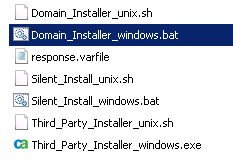
- Navigate to the DVD1 folder on the installation media and start the Domain_Installer_windows.bat.
- Click Next to move through the initial pages of the wizard:
- Language
- Welcome to the CA Process Automation 3rd Party Installer Setup Wizard
- License agreement - I accept the terms of the License Agreement
- On the Select Destination Directory page, verify that this directory is set to the same directory as the release that you are upgrading from. In this example, the default directory for both 4.1 SP01 and 4.2 is the same:
C:\program files\ca\pam
Note: If you installed the previous release in a folder other than the default, navigate to that folder.
- Click Next to move through the initial pages of the wizard:
- When the Completing the CA Process Automation Setup Wizard appears, replace DVD1 with DVD2 in the Directory path. Then click Finish.
The message appears: "Copying CA Process Automation installer. This may take a few minutes to complete, please wait." You may experience a time lag between the close of this page and the opening of the Welcome page.
- When the Welcome to CA Process Automation Domain Setup Wizard appears, click through the initial pages of the wizard:
- Language
- Welcome to the CA Process Automation Domain Setup Wizard
- License Agreement- I accept the terms of the License Agreement
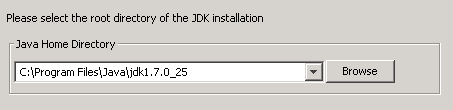
- For CA Process Automation Domain, Please set Java Home Directory, browse to the correct directory.
- Continue, clicking through pages:
- CA Process Automation Domain, Reinstall/Configure - Reinstall is the only option available for an upgrade.
- CA Process Automation Domain, Configuration Screen
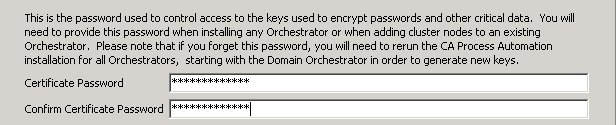
- When the Set Certificate Password appears, enter the same certificate password that the Domain Orchestrator uses. This certificate password must match the one entered when this non-clustered Orchestrator was initially installed. Click Next
- Click through the Select Start Menu Folder to use your previous selection.
- On the General Properties page, note the following changes in defaults for the Orchestrator server port:
- Server Port
-
Defines the port that the Domain Orchestrator uses to communicate with other Orchestrators and agents.
Default: 80 (basic: HTTP), or 443 (secured: HTTPS)
- Deprecated Server Port
-
(Upgrade/re-install only) The Server Port value that was defined for a previous release of CA Process Automation.
Default: 7001
- Click through the following pages, making changes at your discretion.
- Scripts Temporary Directory
- Powershell Execution Policy
- When the Embedded Entitlements Manager (EEM) Security Settings appears,
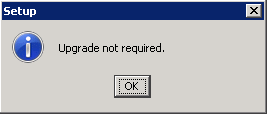
- Select Register Application with CA EEM and click Register. This is always a good idea to do for an upgrade because a new release can contain changes or additions to CA EEM policies for CA Process Automation. When no changes are made between releases, you will see a message that no upgrade is required.
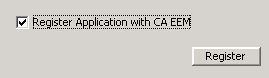
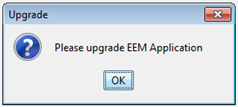
- If you attempt to exit this page without registration and the installation process detects a CA Process Automation version upgrade, the installation process prompts you to select Register Application with CA EEM and then click Register.
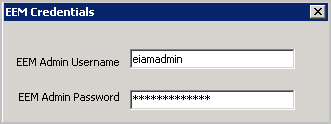
- Supply credentials for logging into CA EEM as the EiamAdmin administrator.
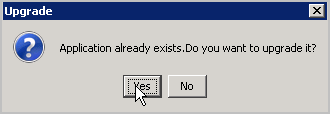
- Agree to upgrade. The installation process detects the CA EEM server version and choses the appropriate SDK.
- If upgrade is not required, this message appears:
- Click OK when the Application Registered confirmation appears.
- Click through the Database Settings since you have already defined these:
- Repository database
- Runtime database
- Reporting database
- Click through Additional JARs for installation if there is nothing to add.
Setup upgrades (installs) the CA Process Automation Domain.
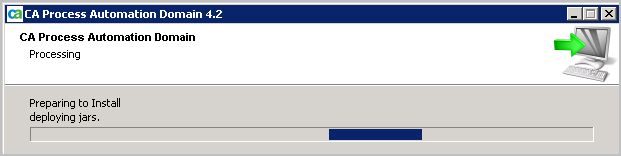
- When the Completing the CA Process Automation Domain Setup Wizard appears, click Finish. Allow time for the schema updates to complete before attempting to start CA Process Automation.
- Start the Orchestrator Service.
- Start CA Process Automation.
.
Copyright © 2014 CA.
All rights reserved.
|
|