

The following list shows examples of custom icons and the potential operators they could represent.
 Diagnose (or Monitor) Performance
 Add User Account
 Debug Script or Code
Example: Create or Edit a Custom Icon
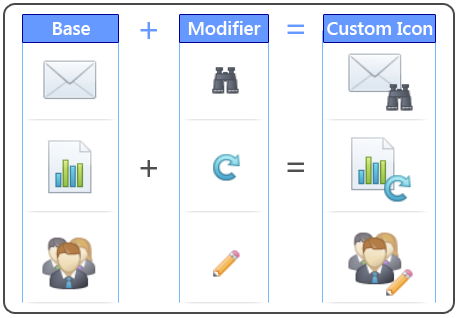
This example demonstrates the key concepts behind the CA Process Automation Custom Icon Editor. The graphic shows the selection of a base icon that is combined with a smaller modifier icon to create a custom icon. The resulting combination is saved as a Custom Icon object that can later be applied to any operator.
Example: Apply a Custom Icon
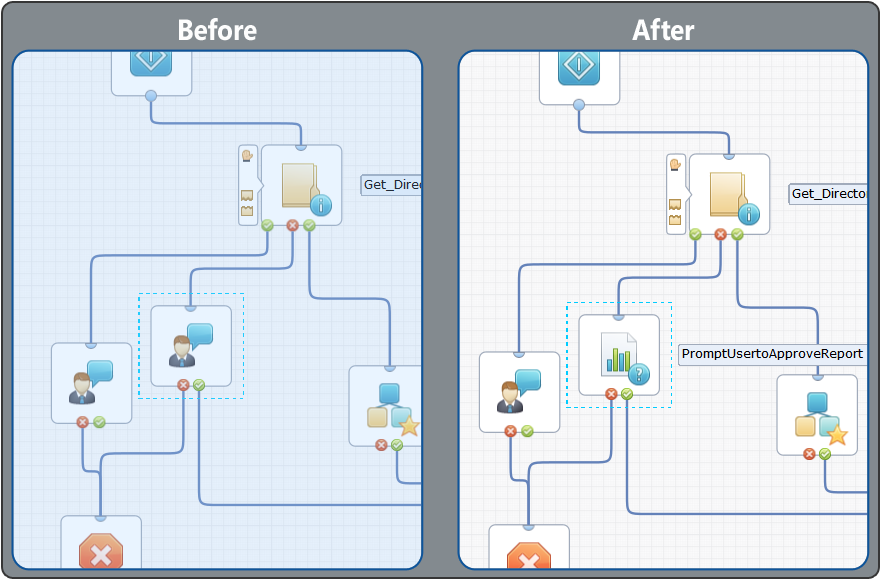
In the following example, the designer has decided to change one of the two identical icons. The custom operator is based on the Assign User Task operator. However, it has a distinct new purpose. The operator prompts a user to approve a report. The old default icon appears within the process at left (Before) and the new custom icon appears at right (After). The new icon better represents the function of the currently selected operator within the process. In this example, the designer has also elected to show the long name for the operator.
Imagine a process with many similar operators arranged in a series. Each operator could perform a different action. In this situation, use custom icons to help you to identify each distinct operator.
|
Copyright © 2014 CA.
All rights reserved.
|
|