

Custom icons are visual identifiers for an operator. They assist you in identifying the specific function of an operator. You can create custom icons in any automation library folder, and then apply them to any operator. Each icon displays your chosen base image with a modifier image overlaid in the lower right corner. The base (object) and modifier (action) provide a consistent structure for all icons.
The topics in this section describe why and how a CA Process Automation Content Designer uses custom icons to customize the appearance of operators. This section also provides examples.
As a process designer, you rely on the visual cues that icons provide to determine the purpose of each operator. For example, what would you guess is the function of the following operator icon?

Even without a label, you can infer from the image that this icon represents a Delete Email operator. An appropriate icon helps you and other designers understand the functionality of an operator.
The initial investment of time you make in assigning an appropriate icon yields many benefits, including the following:
Using a standard set of base and modifier images helps designers understand the object performing the action.
Designers can readily identify distinct operators in even the largest, most complex, processes.
Teams of designers working in other native languages can share process designs because they are easier to understand.
Use the following flowchart as a guide when customizing icons for your process operators:
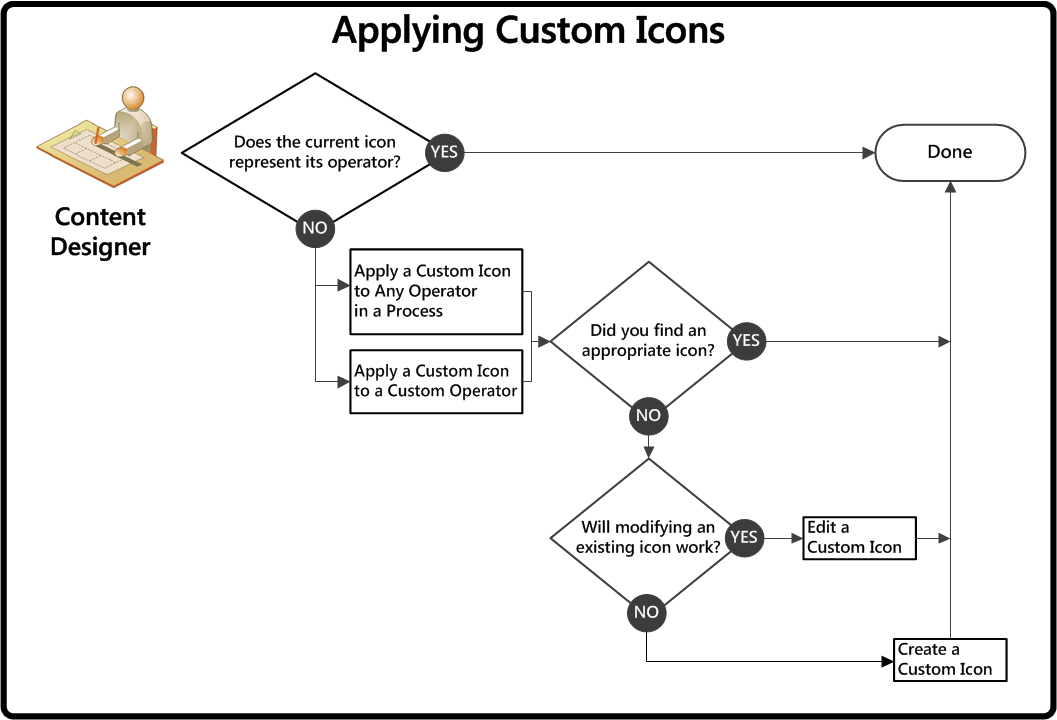
No sequence is required for performing the listed tasks. At any time, you have the following options for customizing icons:
|
Copyright © 2014 CA.
All rights reserved.
|
|