

Release on the Full Analysis menu item from the Display menu to open a Performance Manager Analysis Report window, as shown in the following screen:
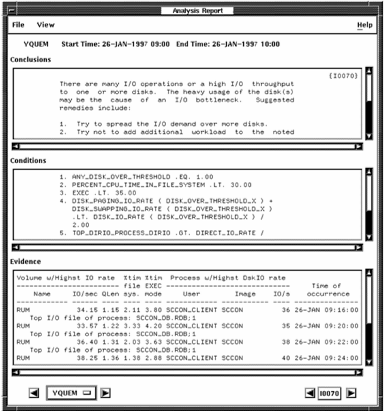
The menu bar contains File and View menus. To close the window, pull down the File menu and release on the Close menu item.
By default, the Full Analysis Report lists conclusions, evidence, and rule conditions that satisfied rule firings. To remove either evidence or conditions or both from your report, pull down the View menu and release on the appropriate item.
To proceed through the list of nodes, click the appropriate Node arrow button or hold MB1 down on the node button to display an option menu with the selected nodes. Releasing on the desired node name updates the window with that node's report.
If more than eight nodes were selected for analysis, the node option menu contains two <more> buttons, which cause the node names to be shifted up or down when the cursor is within their option entry. To stop the shifting, move the cursor out of the <more> button. Releasing on a node name causes the Analysis Report window to be updated with that node's report. Releasing on a <more> button causes the report window to be updated with data of the node name adjacent to the <more> button.
To proceed through the list of conclusions, click the appropriate rule ID arrow button.
|
Copyright © 2008 CA.
All rights reserved.
|
|