

You can enter any of the following options:
Directs the Performance Manager to analyze the data to generate an Analysis Report.
Directs the Performance Manager to analyze the data to generate Performance Evaluation and Process Statistics Reports. The primary key for presenting process statistics defaults to Interactive, Batch, Network, Detached, or Other organization. The secondary key defaults to Imagename.
While viewing the resulting report, an option is provided to re-sort the process statistics.
Specifies that the unanalyzed data will be made available for user inspection. Since no pre-processing of the data is required for dumps, no overhead is added to the analysis process. Refer to the CA Performance Manager for OpenVMS Administrator Guide for more information about dump reports.
Directs the Performance Manager to analyze data to generate the Tabular Report sections averaged over the entire analysis period.
Displays options for summarizing process statistics and for specifying the reporting intervals, as shown in the following screen:
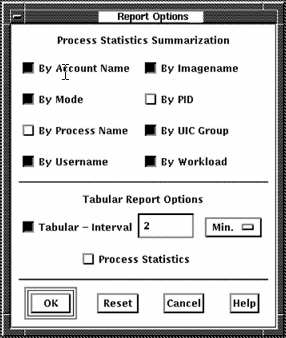
Directs the Performance Manager to prepare interval reports summarizing data into specified intervals. This reporting option is unavailable unless the Final Tabular report is selected. Once selected, the reporting interval becomes available. Performance Manager data collection for daily performance data is recorded every two minutes. This is the default reporting interval. This value can be adjusted by varying the supplied value of 2 and the units value of minutes. When the analysis process is initiated, it may override your selections for the reporting interval if it is not a multiple of the recording interval.
Directs the Performance Manager to analyze the data to generate all graphs and pie charts. The options are as follows:
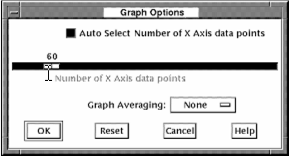
The Auto Select Number of X Axis data points button is used to have the Performance Manager choose a value that results in an even time interval to be represented by each data point. When you disable this button, you can specify the number of X Axis data points to plot across a graph.
As the value of X Axis data points increases, spikes and valleys become more defined and the graph has a higher resolution. A low number of X Axis data points produces a smoother graph because the graphing facility may average multiple data points within the time frame specified.
Press on the Graph Averaging button and an option menu appears. The selected data is averaged into the time period selected. For more information on graph averaging, see the chapter “Generating Historical Graphs."
By default, the Performance Manager analyzes data for all nodes in your schedule file. Click a node's toggle button to include or exclude the node from the processing. Clear and Set buttons are available for adjusting all toggles.
The OK button applies your selection, removes the data selection box and activates a Performance Manager Work in Progress dialog box which includes a real time display of the progress of the analysis procedure. See the Controlling the DECwindows Motif Interface section for details of the Work in Progress box.
The Cancel button closes the Data Selection dialog box and resets all widgets.
The Reset button sets all widgets back to their settings of either the startup defaults or the last approved selection.
|
Copyright © 2008 CA.
All rights reserved.
|
|