

The Single Sign-On Configuration Tool lets you change default settings for the Single Sign-On website. For example, you can change the virtual directory for the Single Sign-On website. The virtual directory is required to use an encryption scheme for communications among CA servers.
You can change other settings that affect Single Sign-On behavior when users attempt to log in. Some parameters also affect user interface behavior, such as the timeout period that logs the user out automatically in response to inactivity.
Important! Updates to the Single Sign-On website only affect CA data source products that are running on the same server because of the distributed architecture of the software.
Follow these steps:
Log in as root or with the 'sudo' command.
[InstallationDirectory]/CA/PerformanceCenter
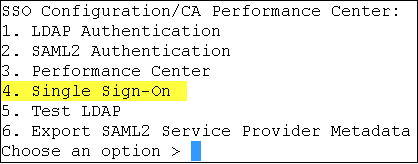
You are prompted to select an option. The available options correspond to CA applications running on the local server.
You are prompted to select an option.
You are prompted to specify the priority.
The Priority parameter only applies to CA Performance Center.
Refers to settings that only administrators can change. Such settings are propagated to all other CA products registered to this instance of CA Performance Center. Remote Value settings are only used if a corresponding Local Override value is not present.
Refers to settings that can be changed for all products. If a Local Override value is present, it takes precedence over both the Remote Value and default settings.
You are prompted to select a property to configure.
Specifies whether the Sign-In page appears when users attempt to log in to a data source interface. A value for the Anonymous User ID parameter is required if this parameter is enabled. Users do not see the Sign-In page when they attempt to log in. They are logged in as the user associated with the Anonymous User ID parameter.
The Localhost User Enabled parameter takes precedence when the following conditions are met:
Default: Disabled.
Note: The Anonymous User login takes precedence over Windows Authentication.
Specifies the username that is used to authenticate the user automatically, bypassing the Sign-In page. This parameter is only used if the Anonymous User Enabled parameter is enabled. Select one of the following values:
Specifies whether the Sign-In page appears when the user is logging in from the server where Single Sign-On is installed.
If this parameter is enabled, the Sign-In page appears, even if the user is logging in from the Single Sign-On server.
If this parameter is disabled, the following rules apply:
Default: Disabled.
Specifies whether users are automatically signed in—bypassing the Sign-In page—when they are logging in from the Single Sign-On server. A value for the 'Localhost User ID' parameter is required if this parameter is enabled.
Default: Disabled.
Specifies the user ID that is used to authenticate users automatically—bypassing the Sign-In page—when they log in to the Single Sign-On server. This parameter is used only if the 'Localhost User Enabled' parameter is enabled. Enter one of the following values:
1 - The username for the default administrator account (admin).
2 - The username for the default user account (user).
Specifies the number of minutes that pass before a Single Sign-On cookie expires. Each time a user performs an action in a data source interface, the cookie timeout resets. If the timeout expires, the user is logged out and must reauthenticate.
Default: 20 minutes
Specifies the key that is used to encrypt and decrypt the Single Sign-On cookie.
Specifies the encryption algorithm that is used to encrypt and decrypt the Single Sign-On cookie. Supply either DES or AES for the value.
Specifies the number of seconds the Single Sign-On application waits after a failed sign-in attempt.
Specifies whether the Remember Me check box is displayed on the Sign-In page. The Remember Me setting determines whether a user is automatically logged out when the Cookie Timeout expires.
Default: Enabled.
Specifies the number of days that pass before a user who selected 'Remember Me' on the Sign-In page must reauthenticate. This parameter is only used if the 'Remember Me Enabled' parameter is enabled. A value of 0 indicates that the Remember Me setting does not expire; the user must click the Sign Out link in a data source product interface.
Specifies the URL scheme that data source products can use to access the Single Sign-On application. If you are using SSL, supply 'https:' for the value.
Specifies the URL port that data source products can use to access the Single Sign-On application.
Specifies the name of the virtual directory for Single Sign-On.
Default: SingleSignOn.
Note: If you change the value for any of the previous parameters, the default value is not replaced, but the new value now takes precedence. The new value is actually a Local Override.
The Single Sign-On Configuration Tool closes.
CA Performance Center directs all unauthenticated users to the Single Sign-On website using the new values that you supplied.
|
Copyright © 2013 CA.
All rights reserved.
|
|