Interface Reports › Interface Report Types › Top N ToS Report
Top N ToS Report
A Top N ToS report provides information about the Types of Service (ToS) markings of the packets that generate the most traffic for the selected interface.
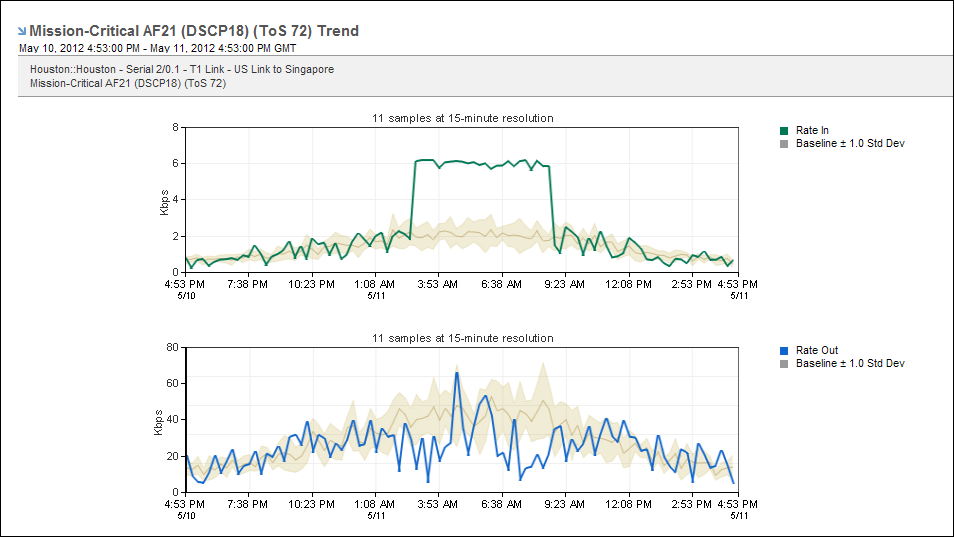
To display a Top N ToS report, start from an interface report.
Follow these steps:
- Display an interface report in either of the following ways:
- Locate and click an interface on the Interfaces page.
- Click an interface link in an existing view--for example, on the Enterprise Overview page.
- Select ToS from the report type menu at the top-left corner of the page.
- Make sure that the report scope is set to Top N ToS. The Top N ToS link should appear next to the report type setting.
The report page is updated to show ToS data in stacked trend charts by default. The report includes views for inbound, outbound, and total ToS data.
- (Optional) Change the data presentation type and the data measurement type by using the Presentation options.
- Stacked Trend Chart of Rate, Volume, or Utilization data (Default setting)
- Trend Chart of Rate, Volume, or Utilization data: Use the Show Top setting to specify the maximum number of conversations to include.
- Pie Chart
- Summary Table of Rate, Volume, or Utilization data
Each option displays data that is inbound and outbound with respect to the selected interface.
- (Optional) Change the reporting period: Open the Timeframe dialog by clicking the timeframe link.
The reporting period is the most recent 24-hour period by default.
Display an Interface Report for a Single ToS
To drill down to more detailed, ToS-specific data for the selected interface, click a ToS link in a Top N ToS view. An overview report for the ToS value on that interface opens.
You can view the report in Overview or Details mode by selecting one of the following report types:
- Overview mode Mixed Chart or Mixed Trend chart: Rate, volume, or utilization data for the ToS on the selected interface
- Overview mode Pie Chart views:
- ToS Protocol Summary - In: Incoming data for the protocols that use the ToS (data coming into the interface)
- ToS Protocol Summary - Out: Outgoing data for the protocols that use the ToS (data going out of the interface)
- ToS Hosts Summary - From: Outgoing data for the hosts that use the ToS (data going out of the interface)
- ToS Hosts Summary - To: Incoming data for the hosts that use the ToS (data coming into the interface).
- ToS Conversations Summary - Total: Data for all conversations that use the ToS (coming into and going out of the interface)
- Details mode: Charts of rate, volume, or utilization data in any combination of the following views, which are shown with or without baselines:
- Last Hour (displayed by default)
- Last 2 Hours (displayed by default)
- Last 8 Hours (displayed by default)
- Daily (displayed by default)
- Weekly
- Monthly
- Yearly
- Protocols mode Trend Chart or Summary Table: Rate, volume, or utilization data
- Protocols mode Stacked Trend Chart or Pie Chart views:
- In: Incoming data for the protocols that used the ToS (data coming into the interface)
- Out: Outgoing data for the protocols that used the ToS (data going out of the interface)
- Total: Data for all protocols that used the ToS (coming into and going out of the interface)
- Hosts mode Trend Chart: Rate, volume, or utilization data for the number of top hosts you specify
- Hosts mode Summary Table: Table of rate, volume, or utilization data for hosts who used the ToS on the selected interface
- Hosts mode summary Pie Chart views:
- From: Outgoing data for the hosts that used the ToS (data going from the interface)
- To: Incoming data for the hosts that used the ToS (data coming to the interface)
- Total: Data for all hosts that used the ToS (coming to and going from the interface)
- Conversations mode Trend Chart: Rate, volume, or utilization data for the number of top conversations you specify
- Conversations mode Summary Table: Table of rate, volume, or utilization data for conversations that used the ToS on the selected interface
- Conversations mode Pie Chart: Data for all conversations that used the ToS on the selected interface
To return to the summary view, click the link that is named for the currently selected ToS and click Select Top N Hosts.
Find Comparable Views in CA Performance Center
You can display the following ToS views in the CA Performance Center console:
- Stacked ToS Trend: Look for the built-in views on the CBQoS tab of the Interfaces Pages. You also can add views of the following types to a custom dashboard: Rate, Bytes, Utilization, In (inbound data), Out (outbound data), and Total (both inbound and outbound data).
- ToS Summary (Pie): Look for the built-in view on the IP Performance tab of the Interfaces Pages. You also can add In, Out, and Total views to a custom dashboard, which show inbound data, outbound data, or all data.
- ToS Summary (Table): Add Rate, Volume, and Utilization views to a custom dashboard.
Also See:
Stacked ToS Trend
ToS Summary (Pie)
ToS Summary (Table)

