

Work columns are additional, non-record columns that you can add to the table procedure specification. They are included in the linkage section of the table procedure program, so that you can use the generated table procedure to pass information back and forth and to perform additional processing. Quick Bridge automatically creates a Work Columns tab when you create a target record.
To add a work column
precision, scale
where precision represents the number of digits allowed in the column and scale is the number of digits to the right of the decimal point.
To change the data type or size of a column, select the column name and then click Change after you type the new information. To delete a column, select the column name and click Remove.
The following example shows three columns added to the table definition. If you select Insert, the TRANS_TIME column will be added before the TRANS_DATE column; if you select ADD, it will be added after:
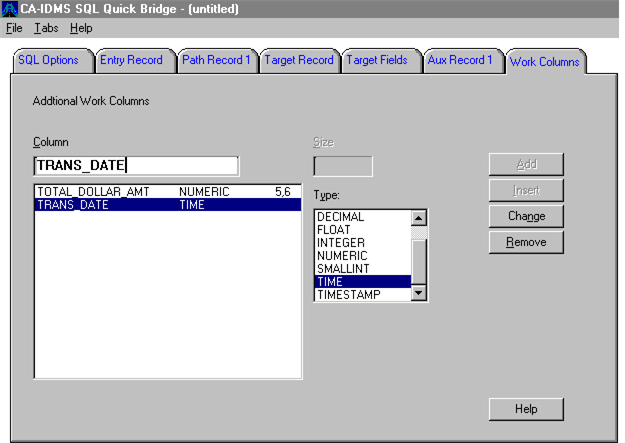
Note: To add work fields to a table procedure specification, define a field and click Add or Insert. Click Change to redefine a field, or Remove to delete it.
|
Copyright © 2013 CA.
All rights reserved.
|
|