

How to Use SQL Web Connect › Connect via ODBC or JDBC › Connect via ODBC
Connect via ODBC
Create an ODBC data source and access your data using CA Visual Express (an ODBC-enabled end-user reporting tool).
Follow these steps:
- Create your ODBC data source:
- Go to Start, All Programs, CA, CA IDMS Server r17 and select ODBC Administrator.
The ODBC Data Source Administrator dialog opens.
- Click on the System DSN tab and add a data source using the CA IDMS driver.
The CA IDMS Server ODBC Administrator dialog opens:
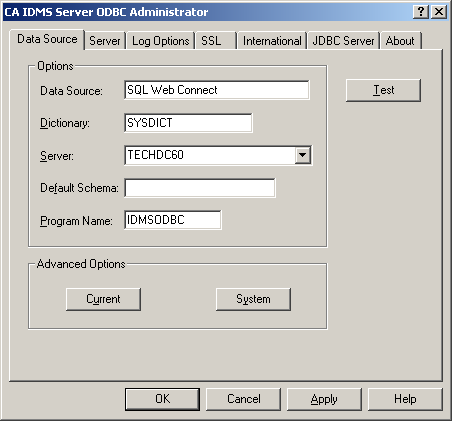
Note: Default values can be used for all other fields.
- Go to the Server tab. The following dialog is displayed:
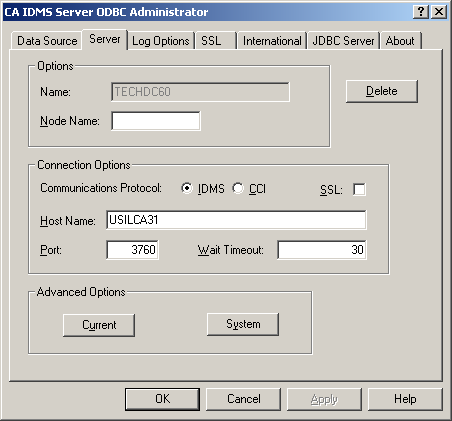
Note: For more information on defining ODBC data sources, see the Defining Data Sources section in the CA IDMS Server User Guide.
- Download and install the CA Visual Express reporting tool:
- Browse to the Download Center page on CA Support Online, at: https://support.ca.com/.
- Select the product 'CA Visual Express Reporter - MS WINDOWS' and the latest version/release number from the drop-down lists and click the Go button.
- On the following screen, click the Download link next to the 'Advantage CA-Visual Express Reporter CD' item.
- The installation of CA Visual Express is provided as a disk (ISO) image. You need to have appropriate software on your machine to read this file. Free (or trial) software is available over the Internet if you do not have an ISO-image reader on your PC. Some examples of ISO reader software include IsoBuster, Virtual CD and PowerISO.
- Invoke the setup.exe file to initiate the installation. Choose the ‘Typical’ installation option.
- Run the CA Visual Express reporting tool:
- Go to Start, Programs, Computer Associates, Advantage, CA Visual Express Reporter 1.5, CA Visual Express Reporter to start CA Visual Express.
The CA-Visual Express application window opens.
- Establish a connection:
- Build your Query. CA Visual Express (VE) has the ability to dynamically build your SQL statements for you. Alternatively, users can code these statements manually and execute them under VE. In this example, we will let VE build our SQL statements using the ‘Quick Query’ facility:
- Go to File, New Query, Quick Query. VE will build a list of tables that you have access to on your system. In this example we will use our newly created SQL schema (EMPSQL), along with the ‘EMPLOYEE’ table for the purpose of validating our use of the ODBC API.
- Select the EMPSQL.EMPLOYEE table from the Table names pane, and click on the Include button. This action moves the EMPSQL.EMPLOYEE table over to the Selected Table names pane:
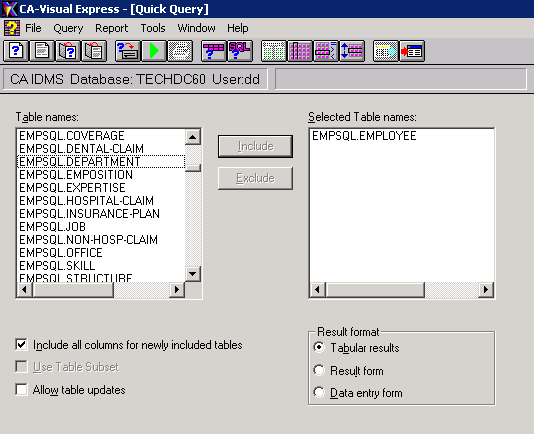
- Various selection criteria can be added to your query, along with Joins, etc. We will not use these features of VE in this scenario.
Note: For more information on the use of this tool, see the Advantage CA-Visual Express Reporter User Guide.
- Go to Query, Run to run your query.
VE displays the EMPSQL.EMPLOYEE table.
Copyright © 2014 CA.
All rights reserved.
|
|