Previous Topic: Add logic to the “remove image” click eventNext Topic: Add logic to the “ok” click event


Add logic to the window “open” event

Follow these steps:

  1. The next event we want to complete is the window Open event. As you may recall, this procedure step will be linked to from the eGolfer Home procedure step. The golfer will select a scoring record and click the Score Card push button which will cause a Link flow to this procedure step. As part of that flow, the golfer userid and the scoring record date and time are passed to this procedure step in order for it to read and display the score card, if it exists. So the import and export views of this procedure step need to contain entity views of the golfer and scoring record.

    Add IMPORTS views to this procedure step containing the golfer userid and the scoring record date and time. Name the views Import. When complete, copy them to the EXPORTS views naming the new export views Export. Your diagram will now look as follows:
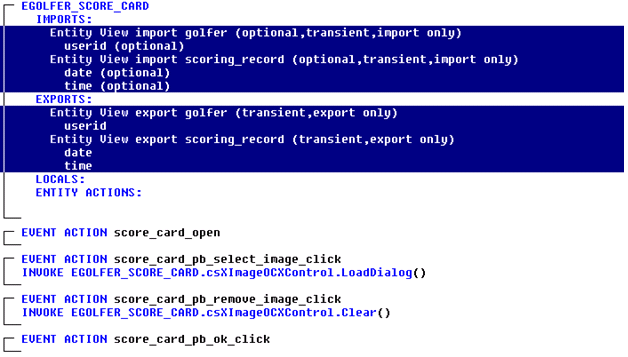
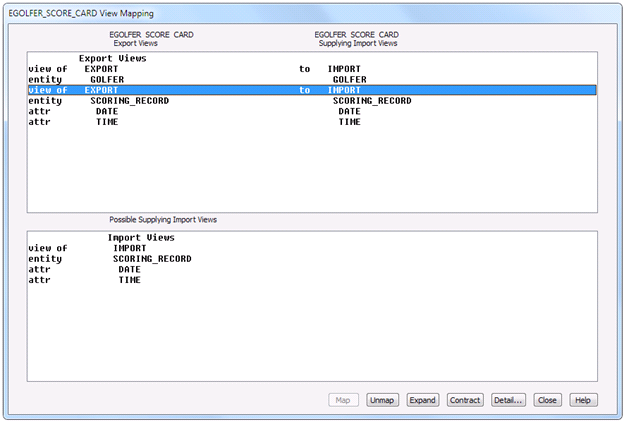
    The EGOLFER SCORE CARD diagram after adding IMPORTS views to the procedure step containing the golfer entity types and then copying it to the EXPORTS views

  2. Now that we have the required import and export views, we want to make sure they are properly mapped. Return to the window design for the eGolfer Score Card. From the Menu Bar, click Detail, Mapping. The EGLOFER_SCORE_CARD View Mapping dialog is displayed. In the top panel select EXPORT GOLFER. In the bottom panel select IMPORT GOLFER and click the Map push button. Do the same for EXPORT SCORING_RECORD. When complete, the dialog will look as follows:

    Select EXPORT GOLFER.in the EGOLFER SCORE CARD View Mqpping and click Map push button

  3. On the view mapping dialog click Close.
  4. We will be displaying the score card image and normally that would imply an export view, but Gen does not provide UI support for BLOB attributes, which is why we are using the OCX control. But the OCX control still needs the BLOB data. So we will use a local view of the Score Card Image.

    Back in the EGOLFER_SCORE_CARD procedure step action diagram create a LOCALS view of Score Card Image and name the view Local. Your diagram will now look as follows:
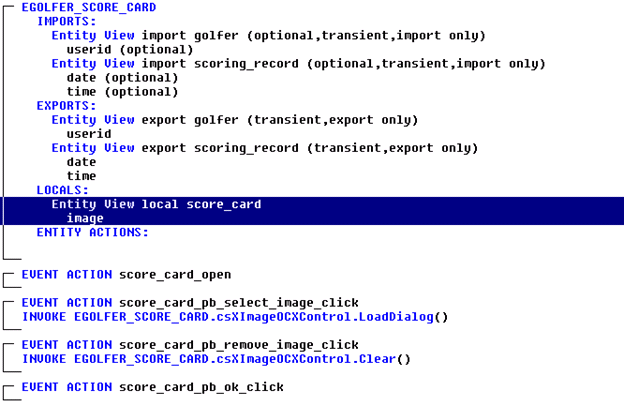
    The EGOLFER SCORE CARD after Creating a LOCALS view of Score Card Image and name the view Local.

  5. Now we are ready to call the Maintain_Score_Card server procedure step. Select the score_card_open event and add the Command Is statement. From the Add Statement dialog select command value and select the DISPLAY command. Select the Add Statement Add push button to add the statement to the event handler.
  6. Next add a Procedure Step Use statement, selecting the maintain_score_card procedure step. In the Import View Matching dialogs that follow, match the import golfer in the server MAINTAIN SCORE CARD to the import golfer from the client EGOLFER SCORE CARD.

    Do the same for the import scoring record and click the Close button. In the Export View Matching dialog, you only need to match the export score_card from the server MAINTAIN SCORE CARD to the local score_card of the client EGOLFER SCORE CARD, then click the Close button. The Open event will now look as follows:

    Note: Make sure the EXPORTS Entity View local score_card is matched from the Entity View export score_card as shown. If you need to adjust any of the view matching, double-click the view name that you want to change to bring up the view matching dialog again.

    Match the import golfer in the server MAINTAIN SCORE CARD to the import golfer from the client EGOLFER SCORE CARD.

  7. If the server successfully reads an existing score_card image we want to display it using the OCX control. But we only want to try to display it if one was found. So we need to verify that the server completed successfully. Server logic usually sets the EXIT STATE variable to a known value, like PROCESSING_OK at the start of the processing and then sets it to another value if need be when encountering a problem. So we want to check to see if the EXIT STATE is still equal to PROCESSING_OK.

    Select the USE statement to highlight the entire USE statement. Add an IF action statement checking the value of the EXIT STATE. The Open event will now look as follows:
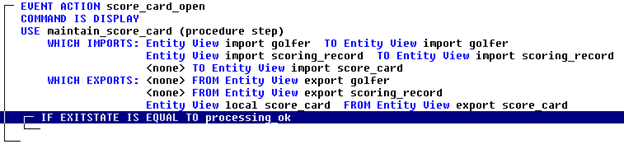
    The Open event after adding an IF action statement checking the value of the EXIT STATE

  8. Now that we can determine if we successfully read a score_card image, actually visualizing it in the User Interface with the OCX Control is a two-step process. We first have to write the BLOB data out to a file, and then invoke the OCX Control passing it the file information.

    Writing the BLOB data to a file requires the use of an External Action Block (EAB). An External Action Block is used to interface Gen generated code with developer handwritten code. An External Action Block is similar to every other action block in that it too can have import and export views, but the only action diagram statement allowed is EXTERNAL. The Gen application then “uses” the External Action Block like it would use any other action block, matching views to the External Action Blocks import and export views. The External Action Block is packaged and generated like other action blocks, but the only thing generated for it is a “stub” or “shell” of a program, containing definitions for the arguments used in the interface.

    The developer would then add his own handwritten code to the stub, and then compile the code like he would any other handwritten code. If there were many EABs, the developer could decide to include them into a library. Finally, the location for the external action blocks would be added to a Build Tool profile so they could be located and linked into the Gen application as appropriate.

    For writing our BLOB to a file, there are two pieces of information the EAB has to have, the BLOB data and the file information. So we are going to create an EAB that has two import views. There is probably information that should be returned to us as well, but for this example we will ignore that. So for this example our external action block will not have any export views.

    For the two import views, the required BLOB data can be represented or defined by a view of the Score Card image. But we also need to pass file information, and we do not have anything defined in our model yet which represents file information. So we will create a new Work Set. A Work Set is similar to an entity type, in that it is a collection of “attributes”, but work sets do not appear in the data model, and subsequently do not get generated as data base tables. Essentially, Work Sets are lists of pre-defined arguments that are used in action diagrams to provide consistency in the parameter definitions.

    To create a Work Set, from the Menu Bar click Tool, Analysis, Work Set List. A list of the current Work Sets in the model is displayed. Every model contains at least two work sets that are added automatically when you create the model. They are the ASYNC_REQUEST and IEF_SUPPLIED work sets. The IEF_SUPPLIED work set in particular is useful in that it contains definitions for many parameters commonly used in Gen applications, but there is nothing in it to represent our file information. So we will create a new work set.
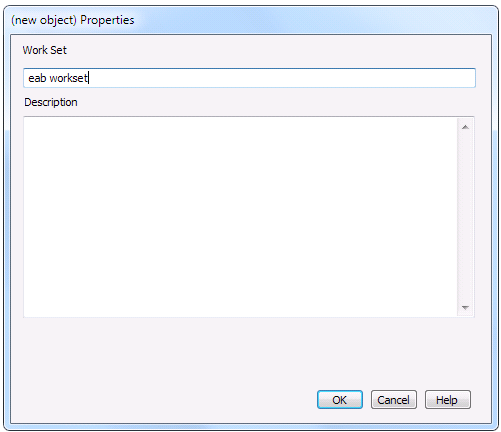
  9. From the Menu Bar click Edit, Add Work Set. Enter the name eab workset as follows and click OK.

    On the Menu Bar click Edit, Add Work Set, in the Properties Dialog enter the name eab workset and click OK

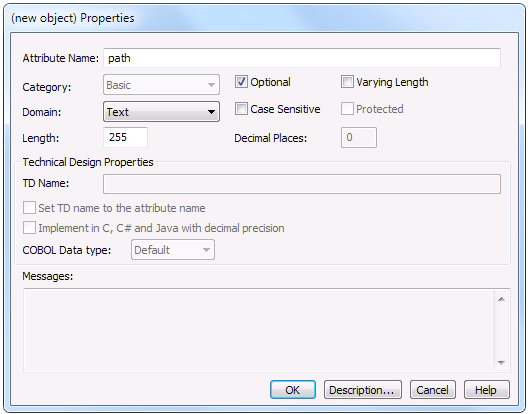
  10. Next, select the EAB_WORKSET in the list and from the Menu Bar click Edit, Add Attribute. Enter the attribute name of path, the domain of Text, Length of 255, and select the Optional checkbox as follows. Then click the OK button.

    In the (new object) Properties Dialog enter the attribute name of path, the domain of Text, Length of 255, and select the Optional checkbox

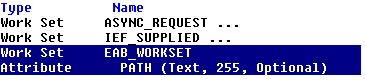
  11. You will now be able to see your new Work Set added to the Work Set List.

    A new Work Set being added to the Work Set List.

    Close the Work Set List and you will be returned to the EGOLFER_SCORE_CARD action diagram.
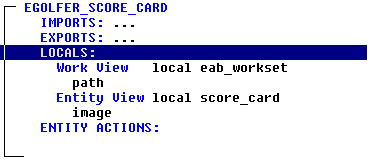
  12. Now that we are back in the action diagram, we want to create a LOCALS view of the eab_workset path. Name the local view local. Your local views will appear as follows:

    Create a LOCALS view of the eab_workset path and name the local view as local

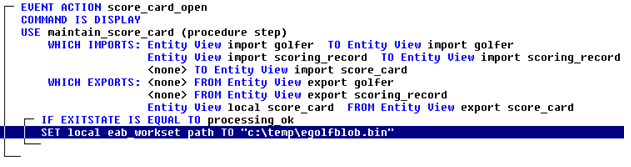
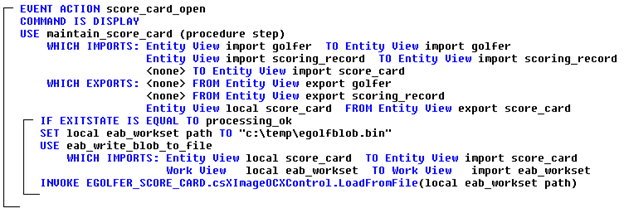
  13. Finally we can set the local view to the file location that we intend to have the EAB write the BLOB data to. Inside the IF statement, set the local eab_workset path to the character string C:\temp\egolfblob.bin. The Open event will look as follows:

    The Open event appears after setting the local eab_workset path to the character string C:\temp\egolfblob.bin, inside the IF statement

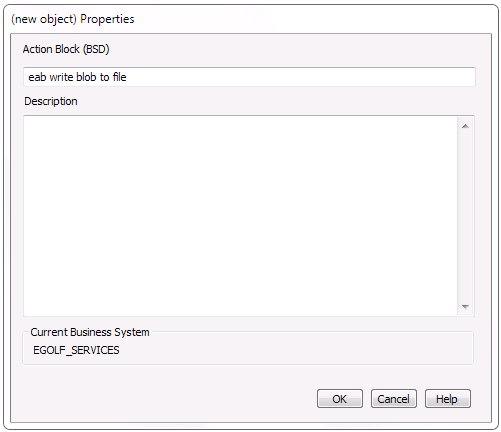
  14. Now we need to create the External Action Block. From the Menu Bar click Diagram, New. Name the new diagram “eab write blob to file” as shown in the following dialog. Click OK.

    Type the Action Block(BSD) field as eab write blob to file

  15. In the empty EAB_WRITE_BLOB_TO_FILE action diagram, select IMPORTS and add a work view of the EAB_WORKSET PATH. In the dropdown, mark the view as Always used as input. Name the view Import. Click OK to add the view to the diagram.
  16. Add another IMPORTS view containing an entity view of the SCORE_CARD IMAGE. Mark the view as Always used as input. Name the view Import. Click OK to add the view to the diagram.
  17. Expand the import views if necessary and double-click each attribute view and mark it as Always used as input.
  18. Finally, add the single action diagram statement of EXTERNAL. The completed EAB must look as follows.

    Note: It is important that the order of the Import views is exactly as shown below. That is because we have already written, compiled, and provided a library containing the external code and they need to match. If they are not, move them so that they are.
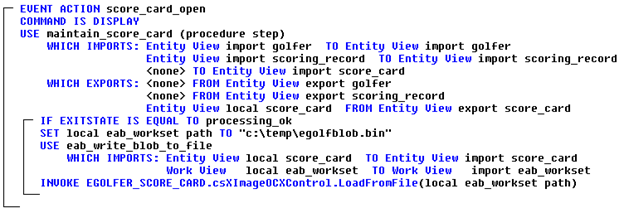
    The EAB after adding the single action diagram statement of EXTERNAL

  19. Close the EAB_WRITE_BLOB_TO_FILE diagram and if you have not done so lately, save the model.
  20. When we created the new external action block, the EGOLFER_SCORE_CARD procedure step action diagram was likely closed. If so, reopen the EGOLFER_SCORE_CARD procedure step action diagram.
  21. In the Open event, now that we have called the server to return the BLOB into a local view, and set another local view to the path for the file, we can call the new EAB to write the BLOB data to the file. So after the SET statement, add a USE EAB_WRITE_BLOB_TO_FILE statement matching the EAB import views to the procedure steps local views.
  22. The final thing we need to do is invoke the LoadFromFile method of the OCX Control to display a particular file. Add the Invoke statement.
  23. In the Add Statement dialog select Window Object and then EGOLFER_SCORE_CARD.csXImageOCXControl (OLEControl). The OLE Object Browser dialog opens.
  24. In the list of Methods scroll down and select the LoadFromFile method and click OK.
  25. Back in the Add Statement dialog select character view, local eab_workset, the <Complete> action, and the Add Statement Add push button. Your diagram will now look as follows.

    The new diagram after adding, back in the Add Statement dialog select character view, local eab_workset, the <Complete> action, and the Add Statement Add push button

  26. So to recap, the Open event gets triggered when this dialog opens. It will call the server procedure step to retrieve a score card image if it exists for the provided scoring record. If it is successful, we call the external action block to write the retrieved BLOB data to a file, and then pass that same file information to the OCX Control to display the image.