Previous Topic: Rename the eventsNext Topic: Add logic to the “remove image” click event


Add logic to the “select image” click event

Follow these steps:

  1. In addition to interacting with our Maintain Score Card server procedure step, much of what we are going to be doing here is interacting with the OCX Control in order to visualize the images. The OCX Control provides “methods” for us to do that. Two of our events require very little work on our part except to invoke the appropriate OCX Control method, so we will complete those first.

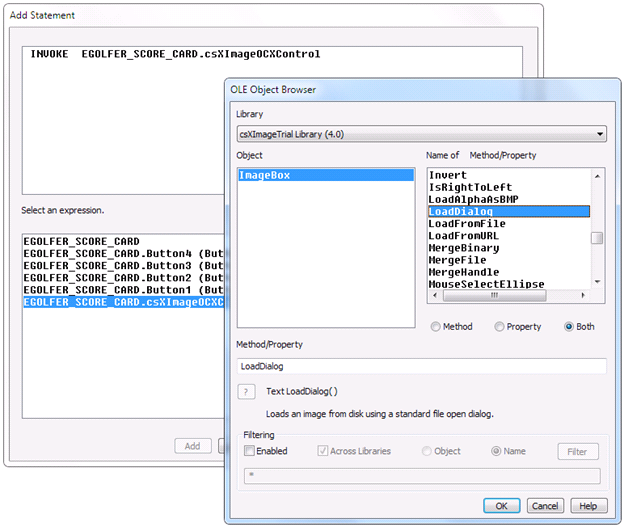
    For selecting an image from a file and displaying it in the OCX Control, we need only invoke its LoadDialog method. It will then present a standard file dialog in which someone can select a supported image file from their file system in order to display it in the OCX Control.

    In the eGolfer Score Card action diagram, select the score_card_pb_select_image_click event.
  2. From the Menu Bar, click Edit, Add Statement, Invoke.
  3. In the Add Statement dialog select Window Object and then EGOLFER_SCORE_CARD.csXImageOCXControl (OLEControl). The OLE Object Browser dialog opens.
  4. In the list of Methods scroll down and select the LoadDialog method as follows:

    Select the LoadDialog from the list of Methods

  5. Click OK and then click the Add Statement Add push button. The statement will be added to the diagram.