

Set up the target environment and build user exits before processing remote files. Compile external actions blocks and place them in the appropriate location. You must use the Setup Tool to create a target configuration and build CA Gen generated applications for NonStop SQL/MP. When the application is being built, the remote files are validated by checking their control information; if valid, this information is used along with the target configuration information to complete building the application.
Note: For more information about building applications targeting NonStop SQL/MX, see Using the Build Tool in CA Gen.
The relationship of processing remote files to the other required and optional IT tasks are described in the following illustration:
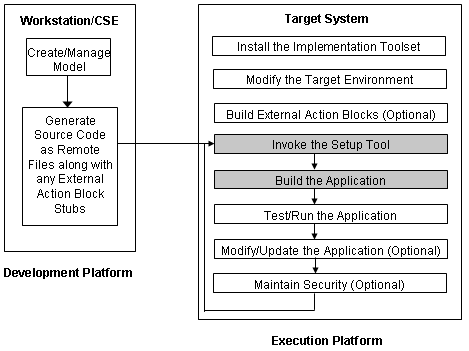
An understanding of the following terms is important to use the Implementation Toolset and Setup Tool successfully:
Identifies a configuration environment created for a model to run on NonStop. A target configuration is an object in the Setup Tool to describe the environment.
Identifies the process of compiling and linking source code generated by CA Gen.
Unbundles a remote file and make its ICM available for processing.
Identifies a remote file. On NonStop, a target configuration is comprised of at least three IPs—a database one (DDL), a referential integrity one (CASCADE), and one or more load modules.
Identifies a single source file within an IP.
This section introduces you to the Setup Tool and should be used as a supplement to the Setup Tool Help, which is available online.
The Setup Tool compiles CA Gen generated source code that is targeted for NonStop. It is a Pathway application that interacts with you to provide the following functionality:
You can create and manage target configurations for each model that is being built. Target configuration includes subvolume locations, Terminal Control Process (TCP) and Pathway parameters, and compiler settings.
You can determine the portions of an application to build or rebuild at any point in the build cycle (Split, Compile, Link).
You can view the status of the build progress. Monitoring occurs at the following levels:
You can see the status at each level in terms of a stage and a percentage of that stage on how far the build is complete.
The Setup Tool conforms to standard NonStop Pathway applications based on the Requester Server model.
The Setup Tool provides an initial logon screen and the ability to secure targets using NonStop's conventional system for securing system objects. For example, you can secure a target for access by members of a login group, by the owner of the target, or by any user in the system.
You can link up to ten user-defined external libraries into any target.
You can access online help from any screen in the Setup Tool. The online help explains every field on a particular screen.
Note: Because the Setup Tool is a Pathway-based application, any file (including SQL objects) created as a result of a CA Gen generated application installation will be owned by the user whose ID is running the Setup Tool's Pathmon process.
When the Setup Tool builds an application, it splits the transferred remote files into several members and compiles these members into object code. The Setup Tool links the object code into executables. These members, object code, executables, and other support files are placed into a directory-like structure.
On NonStop, the default naming convention of this directory structure contains a $vol.subvol location name as a starting point, also known as a target or base location. The Setup Tool appends a suffix character to the end of the subvol portion of the name to form valid $vol.subvol names for all file locations. Therefore, the target location ($vol and subvol) cannot be more than 15 characters in length including the $ symbol for the volume name.
The following table explains the naming convention and the contents of each subvolume used by the Setup Tool. In the table, $data.app is used as the target or base location.
|
Suffix |
Contents |
Description |
Example |
|---|---|---|---|
|
a |
Work area |
A temporary work area used during the installation of a target. Files may be created and deleted by the Setup Tool. |
$data1.appa |
|
b |
RI Library |
Contains the RI library (built by the Setup Tool). |
$data1.appb |
|
c |
RI Source Code |
Contains the RI trigger source (split from the RI remote file). |
$data1.appc |
|
d |
DDL Source Code |
Contains the DDL command file used to create the application database (split from the database remote file). |
$data1.appd |
|
g |
SQL Compiler Listings |
Contains listings produced by the SQL compiler |
$data1.appg |
|
i |
ICM Source Code |
Contains the ICM for all remote files (split from all remote files). |
$data1.appi |
|
j |
RI Object Code |
Contains the RI trigger objects for all source files in location c. |
$data1.appj |
|
k |
Linker Listings |
Contains the Linker listings of all the load modules. |
$data1.appk |
|
m |
MAKE Files |
Contains temporary files used by the Setup Tool. |
$data1.appm |
|
o |
Load Module Object Code |
Contains load module object code for all source files in location s. |
$data1.appo |
|
p |
Code Listings |
Contains listings produced by the Native Mode compiler for all source files in location s. |
$data1.appp |
|
r |
RI Listings |
Contains listings produced by the Native Mode compiler for all source files in location c. |
$data1.appr |
|
s |
Load Module Source Code |
Contains the source files for each member of a load module (split from the load module remote files). |
$data1.apps |
|
t |
Database SQL Tables |
Contains the SQL database for the application (built by the Setup Tool). |
$data1.appt |
|
u |
Pathway Server Configuration Files |
Contains the server configuration files for the CA Gen generated application (built by the Setup Tool). |
$data1.appu |
|
x |
Load Module Executables Application's copy of applini file |
Contains the application executables as specified in the server configuration files. This file contains the Diagram Trace Utility settings. |
$data1.appx |
|
NONE |
Files used in order to execute the application built. |
Contains a set of files that have been copied from the CA Gen IT or created by the Setup Tool so that the application can be executed. |
$data1.app |
In addition, the target location (that is, $data1.app) contains Pathway configuration files, the codepage file, the AEF startup macro, the droptarg TACL macro, and the application's SQL catalog (if you use the default catalog location).
You can change all these component locations before installing the application according to your requirement.
The Setup Tool is a Pathway application. You must start its Pathway environment before using it to install CA Gen generated applications.
Follow these steps:
VOLUME $<setvol>.<setsubvol>
Note:
If you are running the Setup Tool for the first time, you need to cold load the Pathway environment by issuing the SETCOLD command.
If this is not the first time the Setup Tool is being loaded, then cool load the Pathway environment by issuing the SETCOOL command.
The Setup Tool is now ready for use.
If the Setup Tool Pathway environment is no longer needed, you can stop the Setup Tool.
Follow these steps:
VOLUME $<setvol>.<setsubvol>
The Setup Tool Pathway is stopped.
|
Copyright © 2015 CA Technologies.
All rights reserved.
|
|