

You can change a value for a selected variable using the pop-up menu.
Follow these steps:
The Change Variable Value dialog appears.
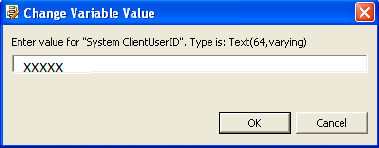
The new value is set for the variable.
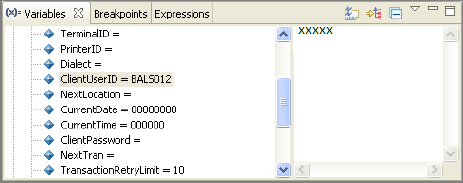
Example: The following illustration shows the new value for ClientUserID in the Details pane.
Note: The Diagram Trace Utility performs data validation (such as disallowing letters in numeric fields) as you type each character. The Diagram Trace Utility enforces time and date formats, size limits, and numeric precision limits. The utility does not change the value if the validation fails.
Note: You cannot modify BLOB data using Diagram Trace Utility.
|
Copyright © 2013 CA.
All rights reserved.
|
|