

The General Appearance preferences settings specify the way PAD Code View editor tabs and view tabs are positioned, the style of tabs that are used, and whether animation is used to animate views to their location when they are opened or closed.
Follow these steps:
The Preferences dialog appears.
The Appearance preferences page appears.
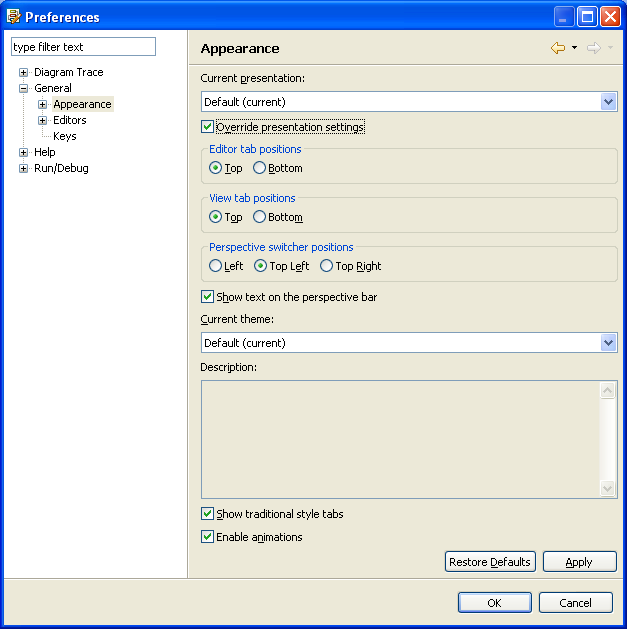
Locally override the settings from the current presentation's defaults.
Default: Disabled
Changes the location of the tabs in the PAD Code View editor.
Default: Top
Change the location of tabs in all views.
Default: Top
Not supported
Changes the display of traditional style tabs (square tabs) to curved tabs.
Default: On
Enable/disable the feature where views animate to their location when closed or opened.
Default: Enabled
Note: The Diagram Trace Utility does not support the Perspective switcher positions, Current Presentation, Current theme, or Show text on the perspective bar fields, or Enable animations options.
The Diagram Trace Utility saves the changes and closes the Preferences dialog.
|
Copyright © 2013 CA.
All rights reserved.
|
|