

You can set general preferences to control the cycling of editor and view dialogs when displaying next and previous views or editors and to control the double-click and single-click mouse behaviors.
Follow these steps:
The Preferences dialog appears.
The General preferences page appears.
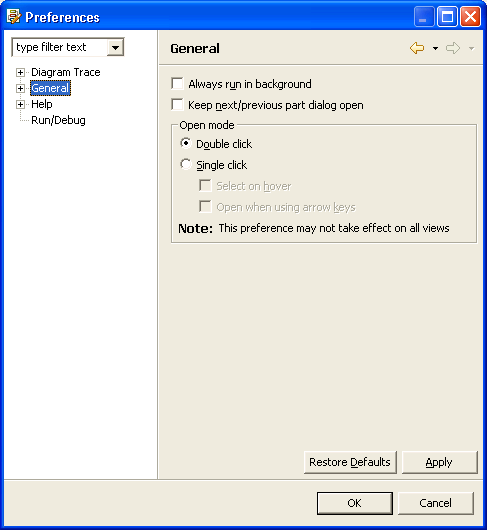
Specifies that the PAD Code View editor and the view cycle dialogs remain open after you release their activation keys. Usually, the dialogs or menus close as soon as you release the activation keys (such as CTRL+F7).
Default: Off
Example: When this preference is checked, you can use the key combination Ctrl +F7 on the Diagram Trace Utility main window to keep the pop-up menu listing views that can be opened to remain visible when you release the control keys. When this check box is cleared, the pop-up menu remains visible only as long as you hold down the control key. If you release the control key, the pop-up menu closes.
Specifies the default behavior for opening views and PAD Code View editors. You can select one of the following methods for opening these resources:
Default: Double click
Note: The effect of these selections may vary depending on the view that has the focus.
The Diagram Trace Utility saves the changes and closes the Preferences dialog.
Note: The Diagram Trace Utility does not support the field Always run in background.
|
Copyright © 2013 CA.
All rights reserved.
|
|