

Step filtering when enabled, prevents the suspension of the application execution in a named Action Block or Event Action.
When Step filtering is enabled for an event type, all events of that type are filtered, regardless of the action block on which the filter is being executed. When step filtering is enabled for a named Action Block or Event Action, the Diagram Trace Utility filters the specified Action Block or Event Action by name.
When Step filtering is disabled, it has no effect on action blocks or event actions.
Follow these steps:
The Preferences dialog appears.
The Step Filtering Preferences page appears.
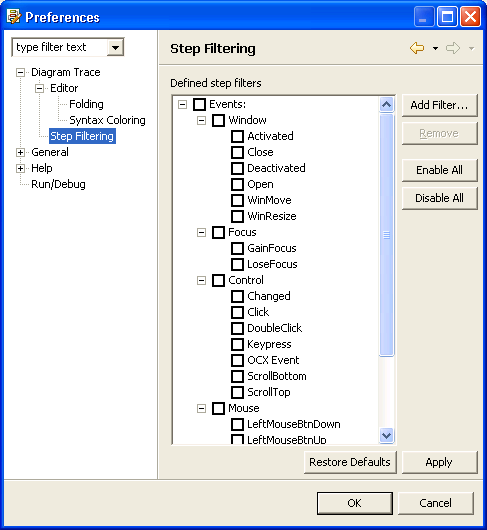
Note: Click Enable All or Disable All to enable step filtering for all events or disable step filtering for all events.
The Add Step Filter dialog opens.
Enter a value in the Pattern to filter field and click OK.
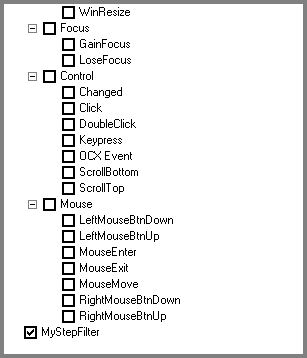
The new filter appears at the bottom of the list and is enabled by default.
Example: The following illustration shows a new enabled filter named MyStepFilter that is added at the bottom of the list.
The event is removed from the list.
The Diagram Trace Utility saves the changes and closes the Preferences dialog.
|
Copyright © 2013 CA.
All rights reserved.
|
|