

Syntax coloring affects the way text for different elements in the PAD Code View editor is displayed.
Follow these steps:
The Preferences dialog appears.
The Syntax Coloring Preferences page appears.
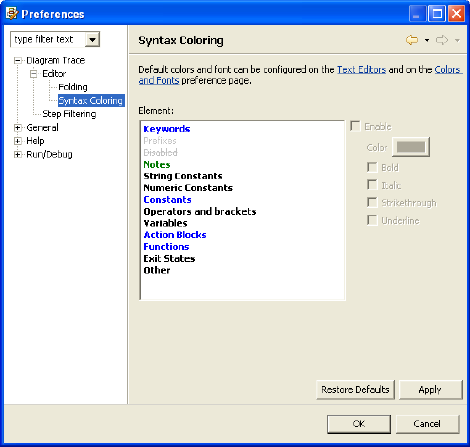
The Syntax Coloring Preferences page lets you view and change the default settings for the listed elements that appear in the PAD Code View editor. You can click each element to see if the Enable check box is checked (to enable syntax coloring) and view the color attribute setting for each element. The following syntax coloring default status, colors, and attributes are defined for the listed elements:
A pop-up Color selection dialog displays from which you can select a basic color or custom color.
The Diagram Trace Utility saves the changes and closes the Preferences dialog.
|
Copyright © 2013 CA.
All rights reserved.
|
|