

You can set the general preferences for the Diagram Trace Utility PAD Code View editor through the Diagram Trace Preferences page.
Follow these steps:
The Preferences dialog appears.
The Editor Preferences page appears.
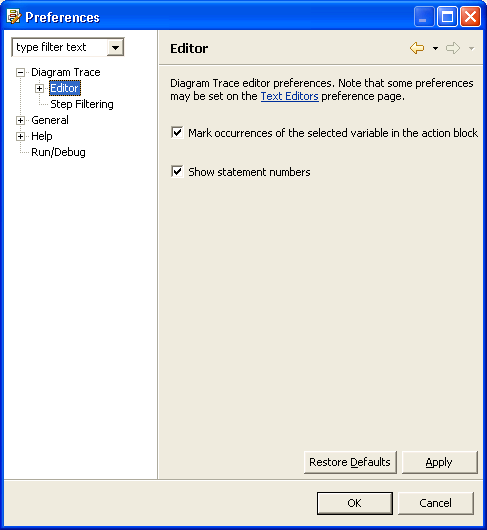
Enables double-clicking on a Variable view in the PAD Code View editor to cause all occurrences of that variable to be marked and highlighted in the text area and appear as annotations in the overview ruler.
Default: On
Displays statement numbers for each line in the PAD Code View editor.
Default: On
The Diagram Trace Utility saves the changes and closes the Preferences dialog.
|
Copyright © 2013 CA.
All rights reserved.
|
|