

You can set the general startup preferences for the Diagram Trace Utility through the Diagram Trace Preferences page.
Follow these steps:
The Preferences dialog appears.
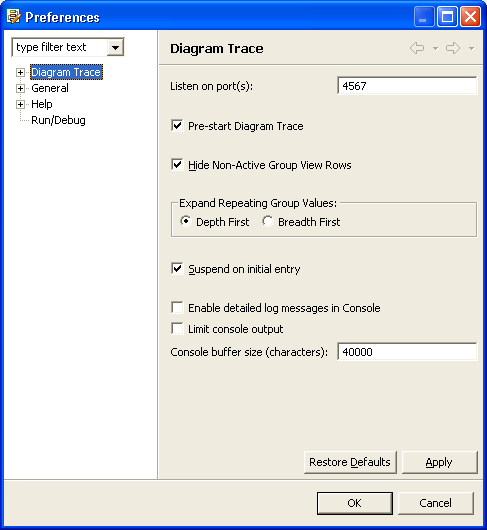
Lets you change the default port number. You can add one or more port numbers separated by commas, spaces, or tabs if you want to configure multiple ports for tracing multiple applications concurrently. Multiple port numbers must contain only numbers 0 through 9.
Note: Concurrent debug sessions can use the same port number or separate port numbers. There is no limit to the number of concurrent debug sessions that can be active at one time. However, system resources will determine the practical limit.
Default: 4567
Limits: Numeric value
Starts a debug session automatically when the Diagram Trace Utility is started.
Default: On
Hides the display of non-active group view rows.
Default: On
Specifies how Variables view expands repeating group values.
The options are:
Default: Depth First
Suspends the application execution whenever an Action Diagram is first entered.
Default: On
Enables the display of detailed messages for standard input, output, and error messages logged in the Console view.
Default: Off
Limits the console buffer size to the value specified in the Console buffer size (characters) field.
Default: 40000
Limits: Integer between 1000 and 1000000
The Diagram Trace Utility saves the changes and closes the Preferences dialog. The changes are used in all succeeding debug sessions unless you change the preferences again.
Note: You can restore the default configuration settings anytime on the Diagram Trace Preferences dialog. To restore the default settings, click Restore Defaults, click Apply, and then click OK.
|
Copyright © 2013 CA.
All rights reserved.
|
|