

Using the Eventlist Interface › Customizing Eventlist › Modifying the Appearance of the Eventlist Interface on Startup
Modifying the Appearance of the Eventlist Interface on Startup
To modify the appearance of the Eventlist interface when it is started
- Pull down the Options menu and choose the Startup ... menu item.
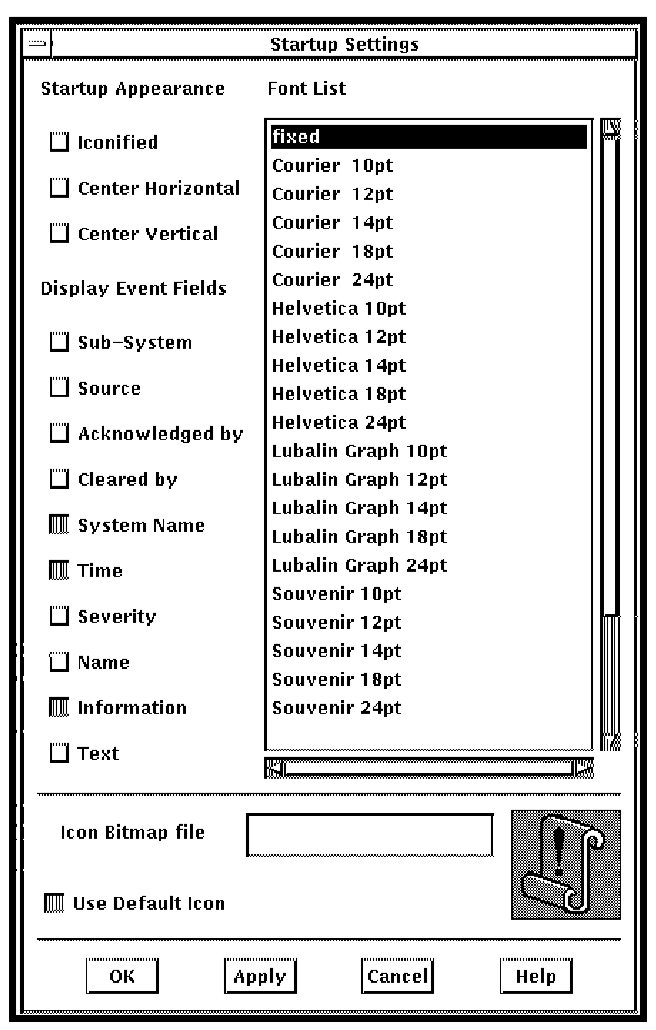
- The Startup Settings dialog box is displayed (see the following figure).
- Change the required setting.
You can:
- Make Eventlist start up as an icon, or start up at a screen position of your choice.
Note: If you deselect the Center Horizontal and Center Vertical options, and then save the settings, the current position of the Eventlist window is saved.
- Specify which event fields are to be included in the Eventlist window.
- Specify the font for the text of the events.
- Specify a bitmap for Eventlist that will appear in place of the scroll bitmap on the C3 interface.
- After you have made the changes you require, click OK.
- You are informed that the settings have been changed, and that you will need to save your settings and restart the window. Click OK.
Note: You must save the settings before you restart the Eventlist window, otherwise the changes will not take effect.
- Pull down the Options menu and choose Save Options to save your settings.
- To restart the Eventlist window, pull down the File menu and choose the Restart Window menu item.
- Click OK to confirm that you want to restart the window.
Note: If you choose to display the event Text field, there will be a performance impact. This is because Console Manager retrieves the text by opening, reading and closing the event and log files for the system which generated the event.
Also, not all the text will appear on the text line if it is not available in the log when Eventlist receives it. To ensure the text is available, the event definition should have a text type of regular, and the characters *^ appended to the end of the text (see the chapter “Understanding ENS”).
Copyright © 2010 CA.
All rights reserved.
|
|