

The extract option searches the live log files and archived log files for events that match the selection criteria that you specify. You can select events based on the following criteria:
The extracted information can be directed to either a file or your default output device.
You can also choose to display only the event name and context, and include timestamps in the output.
You set the selection criteria using the Console Manager Extract dialog box, which is shown in the following figure. By default, no options are selected on the dialog box, initially, which means that all events will be extracted.
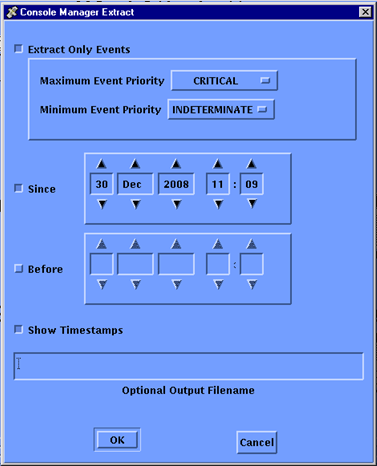
To extract log data for review
|
If you want to… |
Then… |
|
|---|---|---|
|
Extract all events |
Deselect all options on the dialog box. |
|
|
Extract all events logged since a specified date and time |
Do the following: |
|
|
|
a. |
select Since, and deselect Before if set |
|
|
b. |
set the Since date using the arrow buttons |
|
Extract all events logged before a specified date and time |
Do the following: |
|
|
|
a. |
Select Before, and deselect Since if set |
|
|
b. |
Set the Before date and time using the arrow buttons |
|
Extract events logged between one time and another |
Do the following: |
|
|
|
a. |
Select Before |
|
|
b. |
Set the Before date and time using the arrow buttons |
|
|
c. |
Select Since |
|
|
d. |
Set the Since date and time using the arrow buttons |
|
Display timestamps |
Select Show Timestamps |
|
|
Display events within a range of priorities |
Do the following: |
|
|
|
a. |
select Extract Only Events |
|
|
b. |
set the Minimum Event Priority |
|
|
c. |
set the Maximum Event Priority |
|
Output the extracted information to a file |
Enter the name of the file in the Optional Output Filename field |
|
|
Copyright © 2010 CA.
All rights reserved.
|
|