

Post Deployment › Change and Update Passwords › Change Password › Change Password from Active Directory › Change CA Service Desk Manager Password in Active Directory
Change CA Service Desk Manager Password in Active Directory
Active Directory lets you change the service provider CA Service Desk Manager password.
Follow these steps:
- Log in to the LDAP server.
- Navigate to Active Directory Users and Computers.
- Expand the host server directory.
- Select Users.
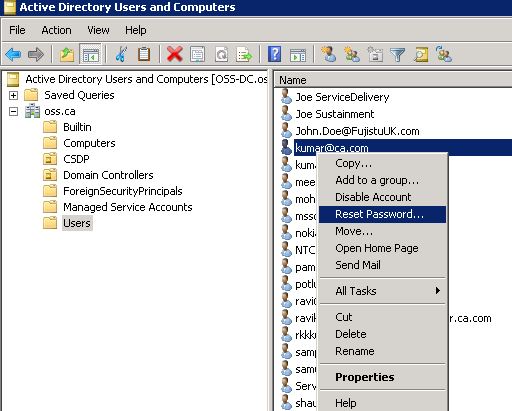
- Locate and right-click the service provider administrator CA SDM user name.
- Click Reset Password and update accordingly.
- Restart CA SDM services.
To restart CA SDM services Follow these steps:
- Go to the server that has CA SDM1 installed in it.
- Click Start, Administrative Tools, Services, CA Service Desk Manager, right click, properties, Log on tab, provide the new password, and click OK.
- Restart the CA SDM machine service.
- Restart CA Service Desk Manager server.
- Restart CA Process Automation Agent.
(Active Directory) Update CA Service Desk Manager Password in CA Service Catalog
After you have updated the CA Service Desk Manager password in Active Directory, update the password in the CA Service Catalog.
Follow these steps:
- Log in to CA Catalog Service as an administrator.
- Click Administration, Configuration, CA Service Desk.
- Update the password in the User Password field.
- Click Test and click Save.
(Active Directory) Update CA Service Desk Manager Password in CA Process Automation
After you update service provider administrators CA Service Desk Manager password in the Active Directory, update the password in the following locations in CA Process Automation:
(Active Directory) Update CA Service Desk Manager Password in Project Austin Global Dataset
After you have updated the CA Service Desk Manager password in Active Directory, update the password in the EntMon global dataset in CA Process Automation.
Follow these steps:
- Log in to CA Process Automation as an administrator.
- Click Library.
- Expand the Project Austin folder.
Note: If the folders list is too long, type Project Austin in the search field under Orchestrator.
- Select the Austin folder.
- Right-click EntMon_GlobalDataset and select Edit.
EntMon_GlobalDataset content opens in a new window.
- Expand the SDM Configuration folder and select SDM_Password.
- Update the Value field to change the password and click Save.
CA_Monitoring_Service_1.1 password is updated.
(Active Directory) Update CA Service Desk Manager Password in CA_Monitoring Service_1.1 Global Dataset
Update the CA Service Desk Manager password in the CA Monitoring Service global dataset in CA Process Automation.
Follow these steps:
- Select the CA_Monitoring Service_1.1 folder.
Note: If the folders list is too long, type CA_Monitoring Service_1.1 in the search field under Orchestrator.
- Right-click EntMon_GlobalDataset and select Edit.
- EntMon_GlobalDataset content opens in a new window.
- Expand the SDM Configuration folder and select SDM Password.
- Update the Value field to change the password and click Save.
- Password is updated in CA_Monitoring_Service_1.1 global dataset.
(Active Directory) Update CA SDM Configuration in CA Process Automation
After you have updated the global dataset, update the CA SDM configuration in CA Process Automation.
Follow these steps:
- Click Configuration
- Select Domain, click the Modules tab.
- Right-click CA Service Desk Manager, select Edit.
CA Service Desk Manager Module Properties wizard opens.
- Update the Default User's Password field with the new password.
- Click Save and Close.
The CA SDM configuration is updated in CA Process Automation.
(Active Directory) Update CA Service Desk Manager Password in CA Service Operations Insight
After you update the service provider administrator CA SDM password and configuration in CA Process Automation update the CA Service Operations Insight password:
Follow these steps:
- Log in to CA Service Operations Insight as an administrator.
- Click Administration, CA Service Operations Insight Manager Configuration, MaaS-SOI, and Help Desk Configuration.
- Update the password in the Password field.
- Click Test and click Save.
The service provider administrator CA SDM password is updated in CA Service Operations Insight.
Copyright © 2014 CA.
All rights reserved.
|
|