

Post Deployment › Change and Update Passwords › Change Password › Change Password from Active Directory › Change CA Spectrum Password in Active Directory
Change CA Spectrum Password in Active Directory
Follow these steps:
- Log in to the LDAP server.
- Navigate to Active Directory Users and Computers.
- Expand the host server directory.
- Select Users.
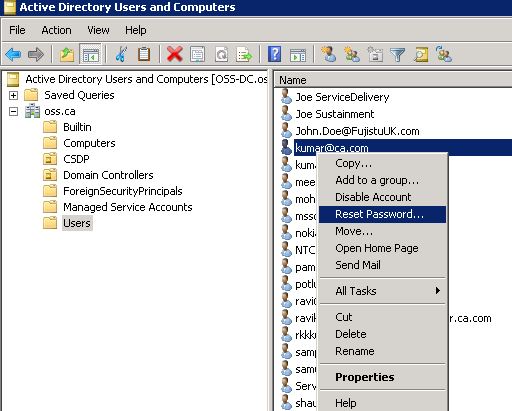
- Locate and right-click the service provider administrator user name whose password you want to update.
- Click Reset Password and update accordingly.
- After you have updated the service provider administrator CA Spectrum password in Active Directory, update the password in CA Spectrum.
- Restart the CA Spectrum service from the CA Spectrum Control Panel.
Note: Ensure that you backup the database before you restart.
(Active Directory) Update CA Spectrum Password in CA Process Automation
After you have updated the service provider administrator password in CA Spectrum, update the following global datasets in CA Process Automation:
Copyright © 2014 CA.
All rights reserved.
|
|