

Change the CA Service Catalog password of the the service provider administrator in the Active Directory.
Follow these steps:
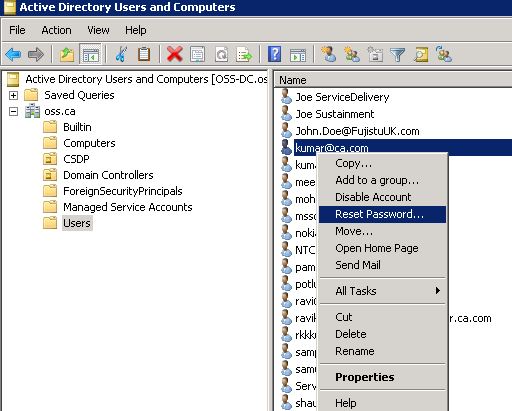
The service provider administrator password is updated in Active Directory.
After you change the service provider administrators password for CA Service Catalog in the Active Directory, update the following global datasets in CA Process Automation:
The global datasets are updated to enable the communication between CA Process Automation and CA Service Catalog and initiate the transaction process.
(Active Directory) Update CA Service Catalog Password in Project Austin Global Dataset
Update the CA Service Catalog password in the EntMon Global Dataset in the Project Austin folder.
Follow these steps:
Note: If the folders list is too long, type Project Austin in the search field under Orchestrator.
EntMon_GlobalDataset content opens in a new window.
Password is updated in EntMon_GlobalDataset.
(Active Directory) Update CA Service Catalog Password in CA_Monitoring Service_1.1
Update the CA Service Catalog password in the EntMon Global Dataset that is located in the CA_Monitoring_Service_1.1 folder.
Follow these steps:
Note: If the folders list is too long, type CA_Monitoring Service_1.1 in the search field under Orchestrator.
EntMon_GlobalDataset content opens in a new window.
Password is updated in CA_Monitoring Service_1.1 global dataset.
(Active Directory) Update CA Service Catalog Password in CA SDM Global Dataset
Update the CA Service Catalog password in the CA SDM global dataset in the CA SDM folder.
Follow these steps:
Note: If the list of folders is too long, type CA SDM in the search field under Orchestrator.
The SDM_GlobalDataset content opens in a new window.
The password is updated in the SDM_GlobalDataset.
(Active Directory) Update CA Service Catalog Password in SLCM Global Dataset
Update the CA Service Catalog password in the SLCM global dataset from the CA SLCM folder.
Follow these steps:
Note: If the list of folders is too long, type CA SLCM in the search field under Orchestrator.
The SLCM_GlobalDataset content opens in a new window.
SLCM_GlobalDataset password is updated.
|
Copyright © 2014 CA.
All rights reserved.
|
|