

Post Deployment › Configure Email Settings › Update Email Settings and Addresses in CA Service Desk Manager
Update Email Settings and Addresses in CA Service Desk Manager
The email addresses of key users must be configured in CA SDM. Configuring these addresses assures requesters can receive email notifications.
Follow these steps:
- Log in to the CA SDM with administrator credentials.
- User Name: ServiceDesk
- Password: Austin@123
- Click the Administration tab.
- Expand Security and Role Management.
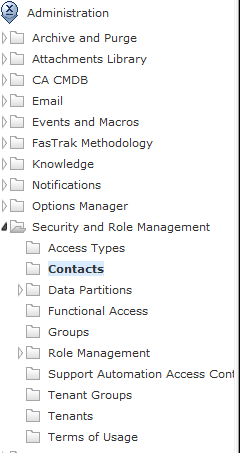
- Click Contacts, Search.
The Contact list displays.
- Select and right-click each Name.
- Administrator
- Administrator Service Delivery
- Service Desk
- Deployment, Joe
- Escalation, Joe
- Service Delivery, Joe
- Primary, Joe
- Secondary, Joe
- Sustainment, Joe
Important! Enter a valid email address in the Email field and the Pager Email field. You can use the same address for both fields.
- Click Edit.
The Update page opens.
- Update the Email address and Pager Email address fields.
- Click Save.
- Click Administration, Options Manager, and Email.
- Right-click, and then click Edit for the Option Value field for mail_from_address.
- Click Install, and then click the link Close Window.
- Repeat steps 10 and 11 for the fields:
- mail_reply_to_address
- mail_smtp_hosts
- mail_smtp_host_port
You have configured the CA SDM email settings. The requester can receive the email notifications.
You have successfully configured email settings for CA Service Catalog, CA Process Automation, and CA SDM. The requester can now receive the email notifications.
Copyright © 2014 CA.
All rights reserved.
|
|