

You can define background graphics within a Java installation dialog. You can position the graphics in different graphics areas using the points of a compass, as follows:
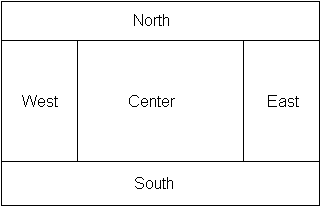
Additional areas for the background graphics are the header and footer areas of the dialog. The south area is used as the navigation area.
The only supported file format for graphics and background colors is GIF.
In the properties panel, you can select an existing graphic or assign a new graphic for the Dialog properties. The Dialog properties are presented if you click an empty field in the workbox. To insert a graphic, the GIF file must have been inserted in the pre-install component. The graphic can then be selected from the drop-down list in the Dialog properties box.
As the sizes of the graphics influence the overall size of the dialog, we recommend that graphics do not exceed 400x200 pixels (approximately) to support screen resolutions of 800x600 pixels (SVGA).
Adding graphics is supported only within Java installation dialogs. For VT100 mode dialogs, these features are ignored.
To view the current layout of the installation dialog being built, click the Test dialog icon (highlighted in the screenshot) on the tool bar, as shown in the following illustration:

|
Copyright © 2014 CA Technologies.
All rights reserved.
|
|