

Configuring Asset Management › How to Create a Custom Software Signature › Modifying a Custom Intellisig
Modifying a Custom Intellisig
As a developer of the Intellisigs, you can modify the custom Intellisigs to update the script, triggers, or data files in the Intellisig.
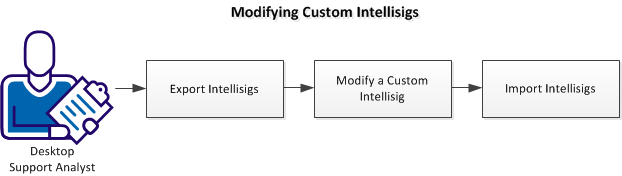
Export Intellisigs
Export the Intellisigs to either modify the Intellisig or move the Intellisig from a domain manager to enterprise manager or to another domain manager. You can export all the Intellisigs, specific Intellisigs, or specific versions of an Intellisig. You can also use the CLI for exporting Intellisigs. For more information about the CLI, see intellisigcmd export—Export Intellisigs.
Note: You can export only at the Intellisig level, not at the product, release or patch definitions level.
Follow these steps:
- Navigate to Software, Definitions and do one of the following depending on whether you want to export all the Intellisigs, specific Intellisigs, or specific versions of an Intellisig:
All Intellisigs
- Right-click the Intellisigs node and select Export.
Specific Intellisigs
- Click the Intellisigs node and select the Intellisigs that you want to export in the right pane. Right-click the selection and select Export.
Specific Versions of an Intellisig
- Click the Intellisigs node and right-click the Intellisig and select Properties. Click the Versions tab, select the versions that you want to export, and click Export on the Intellisig Properties dialog.
The Intellisig Export dialog lists the Intellisigs you selected.
- Specify whether you want to export the Intellisig as a compressed file or uncompressed folder and click Browse to modify the location if required.
Note: We recommend using uncompressed format while modifying the Intellisigs and compressed format while moving the Intellisigs between managers.
- Click OK.
The selected Intellisigs are exported and placed in the location you specified.
 Back to Top
More information:
Modifying a Custom Intellisig
Moving Intellisigs Between Managers
Modify a Custom Intellisig
You can modify an Intellisig to update the script, triggers, or data files.
Follow these steps:
- Verify that you have exported the Intellisig.
- Open the exported Intellisig archive file or folder and update the files as per your requirement. For more information about customizing Intellisigs, see Creating Custom Intellisigs.
- Save the modified files and compress them if you want to import them as zip files.
Import Intellisigs
Import the Intellisigs to either update the Intellisig after modifications or move the Intellisig from a domain manager to enterprise manager or to another domain manager. You can also use the CLI for exporting Intellisigs. For more information about the CLI, see intellisigcmd import—Import Intellisigs.
Follow these steps:
- Navigate to Software, Definitions and right-click the Intellisigs node and select Import.
The Intellisigs Import dialog opens.
- Click Browse and select the zip or xml file of the Intellisig that you want to import.
- Select the Import Mode to specify whether you want to replace the existing definition, merge only new changes, or merge all the changes.
- (Optional) Clear the Update active Intellisig version during the import option, if you do not want to modify active Intellisig versions. Click OK.
The import process begins.
Note: The intellisig in zip format must be exported by corresponding zip (from the export zip options of Intellisig only). Do not use any third-party compression (zip) utility.
Copyright © 2014 CA Technologies.
All rights reserved.
|
|