

You can configure the Policy Status Light module to monitor predefined and user-customized policies in a color-coded window. The colors indicate if the system has exceeded the thresholds in your policies, which can help you respond quickly to performance changes. For example, Green color indicates that the performance change does not meet the defined criteria, and does not fetch any results. On the other hand, red or yellow color appears with appropriate result when performance change meets the defined criteria.
Note: If you have already configured the module, skip steps 1 through 4 of the following procedure.
Follow these steps:
The Policies Object Picker window displays the titles of personal and predefined policy lists in the left pane.
Note: If you have a long list, use the View Filter option to select policies.
Note: You can also remove policies from the shopping cart. Select the check box, and click Remove in the Actions pane under Navigation.
The Policy Status Light displays the health states of policies on the dashboard.
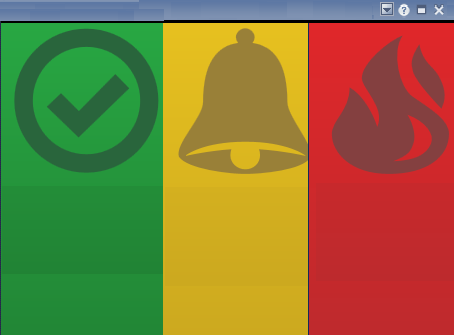
Hover over a Policy Status Light to see the list of objects that are in the same condition. If you have only one policy and you delete it, the Policy Status Light turns green to indicate that the policy is no longer available.
Consider a situation where your policy contains other objects such as processor usage. When the processor usage and the memory usage are in the worst condition, the hover text displays memory usage and processor usage.
Example:
You have four policies named P1, P2, P3, and P4. The following list details your policies:
The following table shows how to configure the Policy Status Light to display your objects:
|
Option |
View |
|---|---|
|
Show Overall (default view) |
One red light and hover text for one P1 object and three P3 objects. |
|
Group By Policy |
Four lights:
|
|
Group By Object Type |
Three lights:
|
|
Show Object Instances |
Nine lights, which is the sum of the policy objects. |
You have created a memory usage dashboard for your site Product Lab, created and selected policies, configured the Policy Status Light module, and started monitoring the memory usage of your server.
Note: If you receive a query canceled notification, reconfigure the Policy Status Light module.
In the future, if a threshold is crossed, right-click the policy on dashboard, and select the Investigate option to identify root cause. You can then use several tools in the Investigator to identify the root cause. For example, add the object of the policy that showed 95 percent of memory usage to the Time Series Facility, duplicate the chart, and compare it with the same time on the previous day using the time slider.
|
Copyright © 2014 CA Technologies.
All rights reserved.
|
|