

To monitor memory usage at 85 percent and 95 percent, you need two different policies. The Policies Object Picker lets you create, select, and manage the policy objects. Before selecting the policies, review the objects, rules, and actions that are set for the policies.
If the policies do not exist, skip this procedure and go to Save a Policy.
Follow these steps:
The Policies Object Picker window displays Chorus Personal Policies and predefined policies.
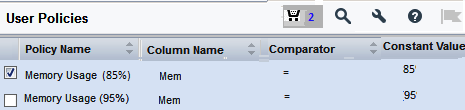
Note: You can repeat step 5 across different tree nodes and disciplines. The Shopping Cart icon ( ) displays the total count of policies that you have selected. Click this icon to see the list of selected policies. To remove a policy from the cart, select the check box, click Remove, and then click Save.
You have selected the policies to monitor the memory usage of your server. To configure the module immediately after selecting the policies, continue with Step 5 of the procedure Configure Policy Status Light.
|
Copyright © 2014 CA Technologies.
All rights reserved.
|
|