

User Guide › Administration › Content Transfer › Export Content
Export Content
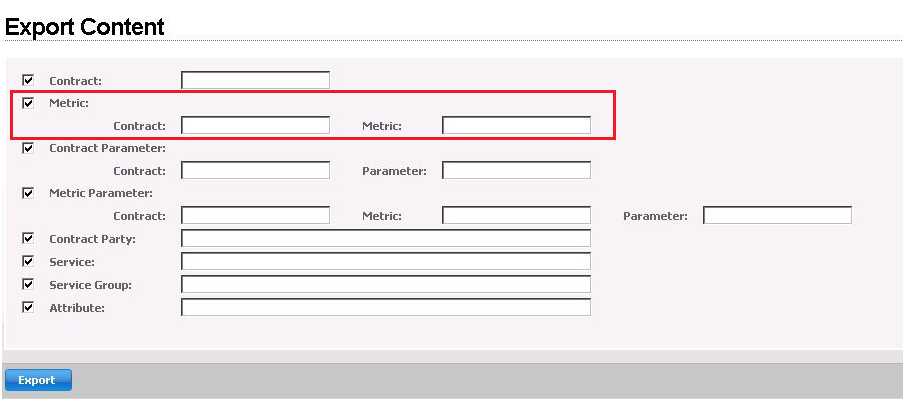
The Export to Excel function enables you to use filters when you export entities. Below is an example:
Example
- Place a check mark in the Metric option.
- In the Metric option's Contract field, enter the name ISO20K-Avail; enter the string num* into the Metric option's Metric field. Click the Export button at the bottom of the dialog.
- The system will export all metrics whose name starts with ‘num’ in the contract ISO20k-Avail.
Note: If you export a metric, its related registration will also be exported.
Note: There are an additional 10 entities exported together when you export, see Exporting other Entities, below.
Exporting Other Entities
- Additional entities are sometimes used when importing data. The additional entities (see the list below) might already exist in CA Business Service Insight. If you need them before starting to import, you can export them before exporting the other entities.
- To export before exporting other entities, go to the export page, uncheck all checkboxes and click Export.
The entities are exported to an Excel file.
The entities list includes:
- Time Zone
- Currency
- Timeslot Template
- Units
- Service Domain
- Domain Category
- Event Type
- Resource
- Resource GroupResource Type
Note: If you export entities from the export page, all entities in above list will be exported together.
Copyright © 2013 CA.
All rights reserved.
|
|