

|
|
|
From the ARCserve On Demand Portal homepage, you can click the Licenses and Storage Purchased link to access, view, and manage your account environment.
This display provides an overview of all the Licenses and Storage Purchased for your account.
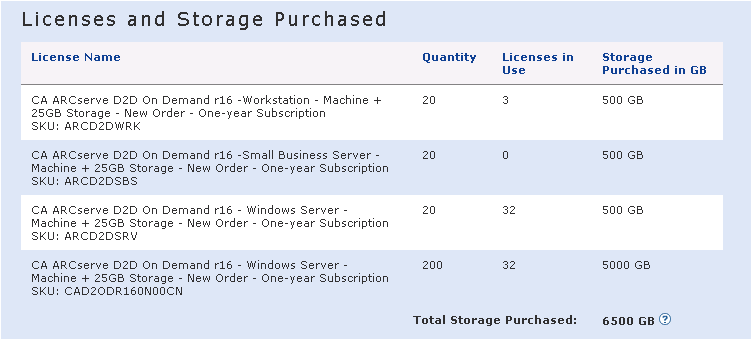
CA ARCserve D2D On Demand provides three individual license bundles that can be obtained: WorkStation, Small Business Server, and Server. This display lists the quantity of each license type purchased, the quantity of these license types currently in use, and the amount of storage space purchased (by each license type and the combined total). Additional licenses and storage space can be allocated and added to any existing account.
This display provides an overview of all the devices in your account, separated by license type. From this display you can view and manage the license usage for the devices in your account.
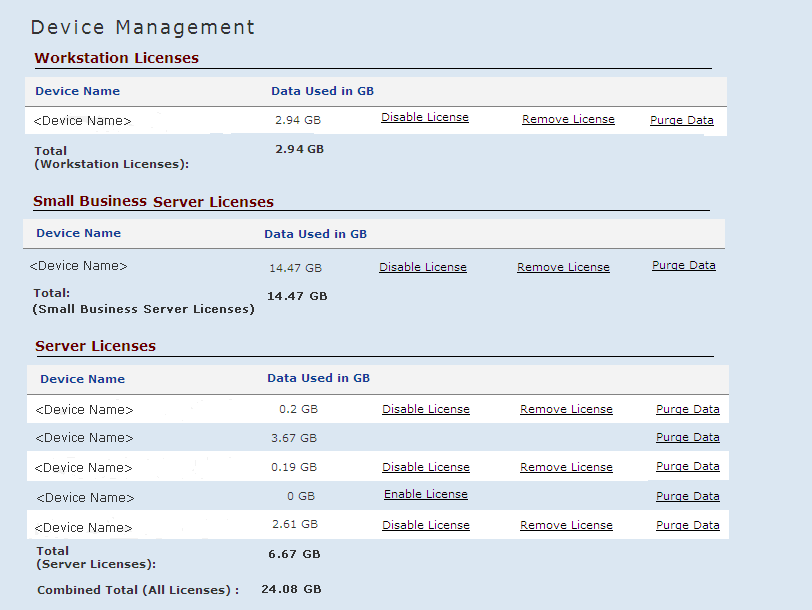
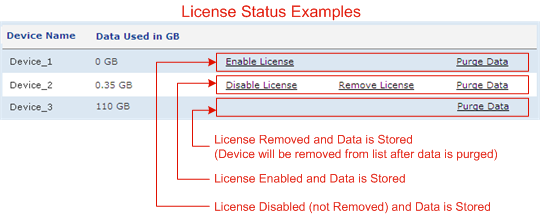
When enabled, a license will be allocated to this device and a license count will be consumed. This device will automatically obtain the license and be able to perform new backups. (The "Enable license" link is only displayed when the device license has been previously disabled).
Disabling a license for a device prevents it from performing any new backups. If the license is disabled from a device, that license count will be freed up and become available for any device to use. However, the original device that it was disabled from will not be able to use this license again, until it is enabled again.
Removing a license from a device can be performed to migrate it to another device. Removing a license from a device prevents it from performing any new backups. If the license is removed from a device, that license count will be freed up and become available for any device to use (including the original device that it was removed from). You can obtain license again if you run the CA ARCserve D2D On Demand job right away.
If you remove a license from a device and there is data from that device still stored in the cloud, the device will still be listed, but the only action that will be available is to Purge Data from the cloud. If there is no data stored in the cloud, after the license is removed the device will no longer be displayed on this list.
You can purge the data from the CA Cloud for any individual device using the link provided. Purging the data removes all backup data for a device from the CA Cloud.
Note: This action cannot be undone and the purged data cannot be recovered. If a license has already been removed, the device will be removed from the list after the data has been purged.
| Copyright © 2012 CA. All rights reserved. | Tell Technical Publications how we can improve this information |