

|
|
|
When you have entered or selected the required history parameters, you can display history records for the server.
To display short history records
The list of brief (short) history records based on the entered history parameters is displayed on the same page, under the history parameters section.
Notes:
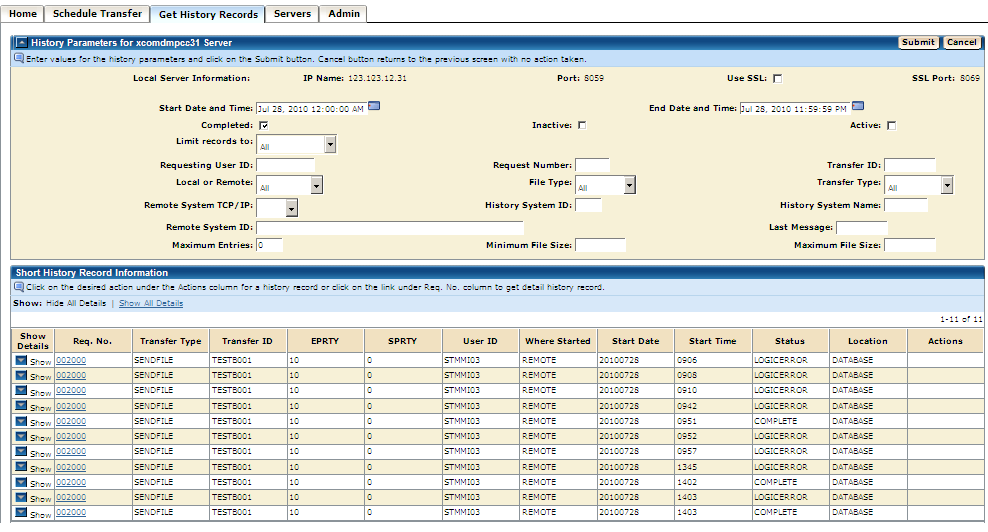
Additional information for the corresponding server is displayed.
The Show icon is changed to Hide. Click the icon again to hide the extra information.
Additional information for all listed servers is displayed.
The Show All Details link is changed to Hide All Details. Click the link again to hide the extra information.
Note: The last column in the table is the Action column. Depending on the status of each record, the list of actions displayed may vary, or no actions may be listed. For more information, see Actions on History Records.
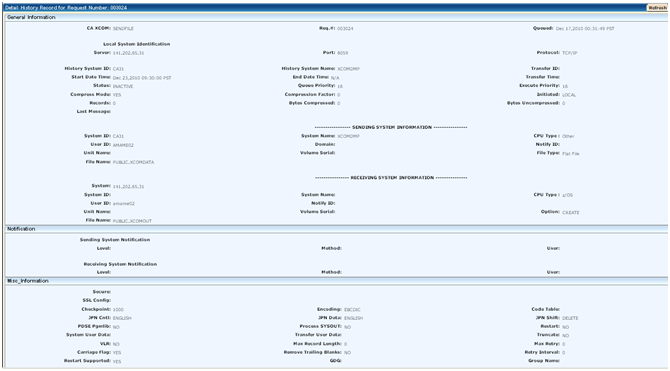
The Detail History Record page appears in a new window, displaying the following sections:
All fields on this page are display-only.
Depending on the status of the record, a Refresh button may also be displayed on the top right of the window. Clicking on the Refresh button will refresh the information on the Detailed History Record screen.
| Copyright © 2011 CA. All rights reserved. | Tell Technical Publications how we can improve this information |