

|
|
|
You can download an already exported configuration file from the web server to your workstation. The file can then be uploaded to the web server for further processing.
To download an exported configuration file
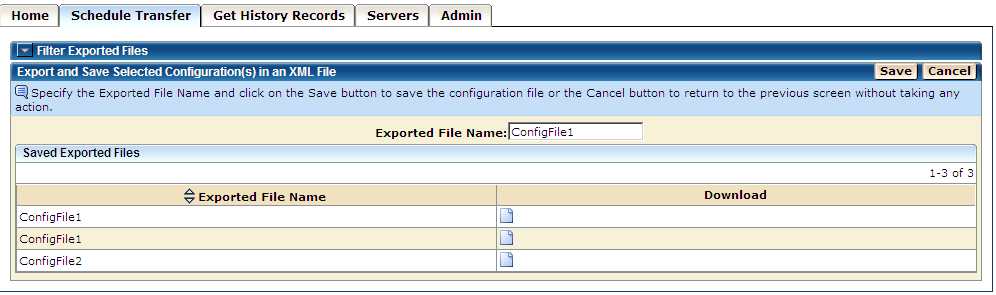
A dialog opens and gives you the option of opening, saving, or canceling the process.
A dialog opens to select the path and the file name for the downloaded file on your workstation.
Note: If you click Cancel, the process is canceled.
| Copyright © 2011 CA. All rights reserved. | Tell Technical Publications how we can improve this information |