

|
|
|
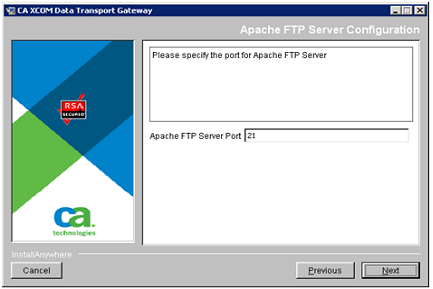
The Apache FTP Server Configuration dialog described in this step relates to the installation of the Apache FTP Server, which is typically the last component for which the installer requests detailed information. The dialog prompts you to specify the server port number that you want to use for FTP connections.
Note: If the Apache FTP Server was installed previously and the configuration file (ftpd-gateway.xml) from this earlier installation was not deleted, the Apache FTP Server Configuration dialog will not be displayed. Instead, the former configuration file will be reused for the new installation.
To specify the server port number for the FTP Server
For information about how, after product installation, you can configure the FTP server to support secure FTPS protocol (that is, SSL) connections, see Configure SSL Communication in the chapter "Configuring and Administering CA XCOM Gateway."
The port number is saved.
| Copyright © 2011 CA. All rights reserved. | Tell Technical Publications how we can improve this information |