

|
|
|
CA XCOM Gateway policies can be configured to specify encryption or digest hashing of stored files. To enable this encryption, CA XCOM Gateway requires an X.509 certificate stored within a Java keystore. The public and private key pair associated with this certificate is used to protect encrypted files as they are stored and to control authorized access to those files.
When the X.509 certificate expires, it must be retained in the keystore so that previously stored files can continue to be accessed. However, an unexpired certificate can be added and defined as the active certificate to use for encrypting future stored files.
A keystore can contain any number of certificates, each with a unique alias ID. However, only one certificate can be active. The alias ID of the currently active certificate must be specified in the CA XCOM Gateway global parameters so that CA XCOM Gateway knows which certificate to use when storing new files.
During installation, you can instruct the installer to either create a keystore or select an existing one. The installer can also create an initial self-signed certificate within that keystore or import a certificate. The installer uses the standard Java keytool utility to perform these tasks. You can use the utility later to add certificates. The facilities offered by the utility are fully documented on the http://java.sun.com website (http://java.sun.com/docs/books/tutorial/security/toolsign/step3.html).
Important! The keystore and certificate described here are strictly for use by CA XCOM Gateway to protect transferred files that are to be stored in encrypted form. This certificate is separate from the certificates used by CA XCOM Data Transport.
CA XCOM Data Transport requires its own certificates for SSL communication, and for communication between itself and CA XCOM Gateway. CA XCOM Data Transport uses the openssl utility to manage its certificates instead of the keytool utility.
Note: For more information about certificates for CA XCOM Data Transport and their related installation procedures, see the chapter "Generating SSL Certificates" in the CA XCOM Data Transport for z/OS Administration Guide.
To specify the keystore and certificate information
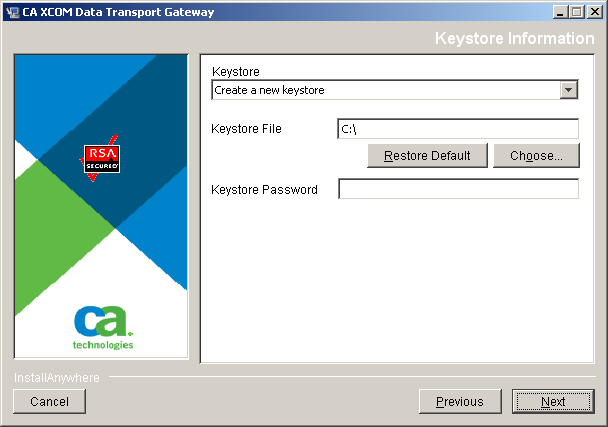
The Certificate information dialog opens.
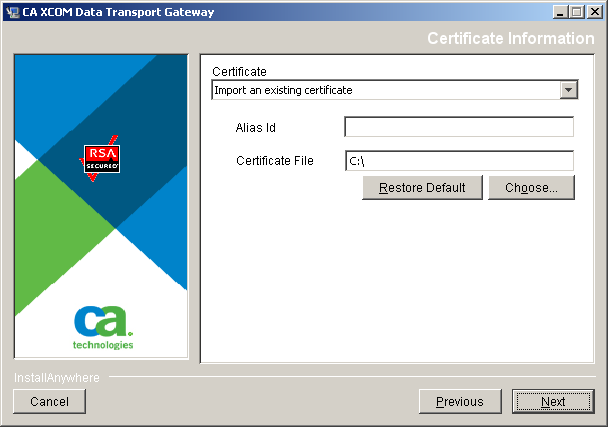
The dialog displays the fields relevant to your selection.
Note: The alias ID is a unique identifier you assign to the created or imported certificate. The installer also sets CA XCOM Gateway’s global parameters to indicate that this certificate is the active certificate to use when CA XCOM Gateway stores new files. (Any new certificates that you add later require different alias IDs. You can update the global parameters at the CA XCOM Gateway website to make a different certificate active by specifying the alias ID of that certificate.)
Notes:
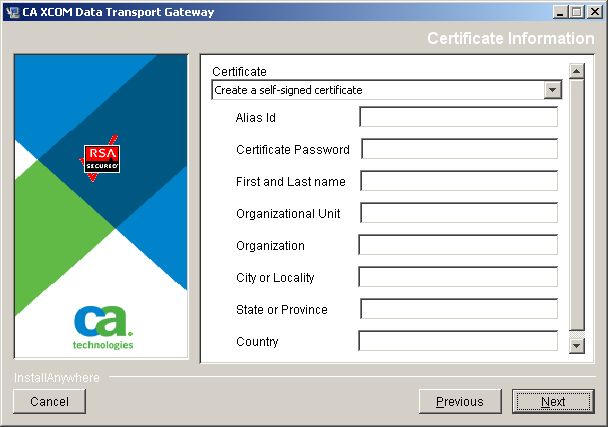
Note: For detailed information about the X.509 certificate attributes, see your Java keytool documentation or the following IETF RFC documents:
| Copyright © 2011 CA. All rights reserved. | Tell Technical Publications how we can improve this information |