

The reporting section of the Resources page consists of the Resource Usage Report, Job Resource Dependencies Report, and Flow panes. Use this section to manage resource usage and monitor the resources for specified jobs.
As a scheduler, you can view a report showing the resource usage for a specified resource, or resource usage by jobs.
This process walks you through the steps for monitoring job resources.
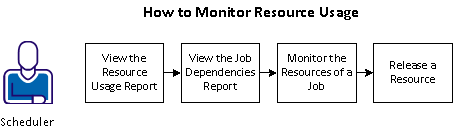
To monitor the resources of a job, you can follow these steps:
Example: Monitor Resource Usage by Resources and Jobs
As a scheduler, you are responsible for monitoring resource usage by resources and jobs. Today, you want to view a report showing the tape drive requirements on MachineD. You know that MachineD, which contains two of the available resources, is currently unavailable. That leaves some jobs suspended while they are waiting for resources. You can run a Resource Usage report to display all of the jobs using those resources.
Additionally, you are interested in a specific set of Human Resources jobs that must complete on time. You can use the Job Resource Dependencies report to display those jobs and the resources they are using. In the report, you notice that a specific job does not have enough resources available to complete. You can edit the resource so that its amount is sufficient for successful completion of the job. You also notice that a renewable resource is being held by a job. You can release this resource so that it is available for other jobs to use.
|
Copyright © 2013 CA.
All rights reserved.
|
|