

For CA Workload Automation AE servers, you can utilize both alerts and alarms. As a console operator, you can create alert policies that include only alerts of interest based on any of the following:
This scenario walks you through the process of creating an alert policy, assigning that alert policy to a specific view, and monitoring the alerts generated.
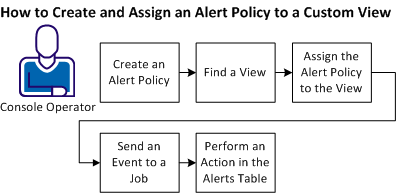

To create and assign an alert policy to a view and monitor alerts, follow these steps:
Example: Create an Alert Policy and Assign it to the WorldJobs View
Suppose that you are responsible for monitoring the jobs in a view named WorldJobs. However, you want to assign an alert policy that issues an alert when a job in the view fails. You can create an alert policy based on job failures, and can apply that policy to the WorldJobs view by adding the policy to the view definition. For example, you can apply the policy to the view definition by adding the following line to the filter definition in VMC:
alert_policy: FailedJobs
To test the view, send a FORCE_STARTJOB event to the box job WORLD01BOX, for example. If WORLD005, a job in WORLD01BOX, contains an invalid command, it fails and issues an alert. You can view that alert in the Alerts table and can take the appropriate action.
|
Copyright © 2013 CA.
All rights reserved.
|
|