

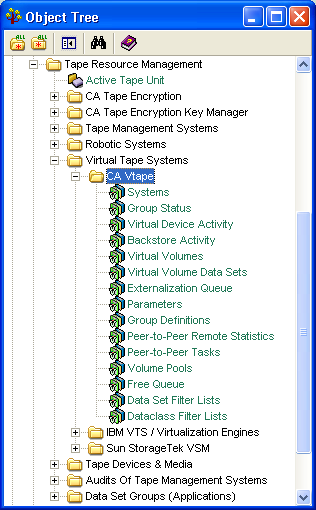
All CA Vtape objects are included in the CA Vtape folder of the Object Tree. This folder is a sub folder found under Tape Resource Management, then Virtual Tape Systems.
Note: Before you begin, make sure that the z/OS host that you want to connect to is up-and-running. For procedures on defining a z/OS Host, see the chapter "Setting Up CA GMI".
To access CA Vtape objects
The Windows Client appears. The following is a sample of the Windows Client main window Menu Bar and Toolbar: 
 ) in the Windows Client main windows Toolbar.
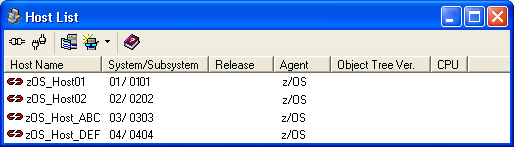
The Host List dialog opens. The following is a sample of the Host List dialog:
 .
.
If your user ID and password were provided in the Host Definition dialog for the selected host, the Windows Client attempts to connect to the host. If the connection is successful then the connection status icon changes from the Not Connected icon  to the Connected icon
  and you can skip to Step 4.
If your user ID and password were not provided in the Host Definition dialog for the selected host, then the Host Login dialog appears and you must proceed to Step 4.
The Host Login dialog disappears.
The Windows Client will attempt to connect and log on to the z/OS host. If the connection is successful then the connection status icon in the Host List dialog changes from the Not Connected icon to the Connected icon . CA GMI will collect information from the z/OS host that you have chosen to connect to.
The Object Tree dialog appears. The following is a sample of an Object Tree:
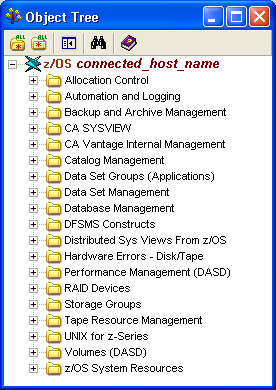
The Tape Resource Management folder is expanded and displays tape management subfolders.
The Virtual Tape folder is expanded and displays virtual tape subfolders.
The CA Vtape objects are displayed in the Object Tree, as shown in the following sample:
|
Copyright © 2013 CA Technologies.
All rights reserved.
|
|