

|
|
|
The Tape Encryption Subsystem Address Spaces object displays the active CA Tape Encryption Subsystem Address Spaces (also known as BES tasks or BES subsystems) on the z/OS system you are connected to. A single system (LPAR) can accommodate a maximum of eight subsystems.
The Subsystem Address Spaces object is useful in monitoring your CA Tape Encryption environment at a high level. It provides visibility to the BES tasks active on the system and the database and parmlib data sets that they use.
You can use the object to do the following:
To open the display
The Object Tree is displayed in the Windows Client showing the CA Tape Encryption objects.
The Tape Encryption Subsystem Address Spaces window opens, as shown in the following sample:
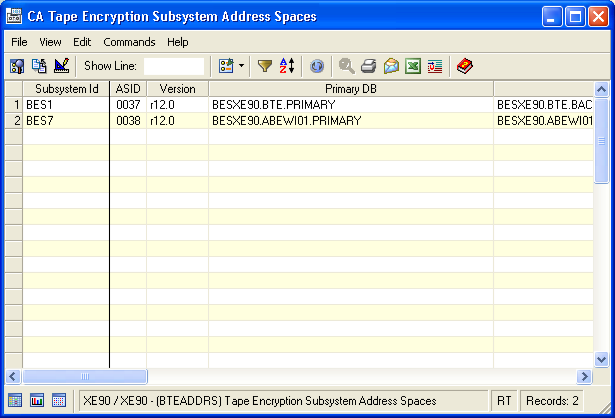

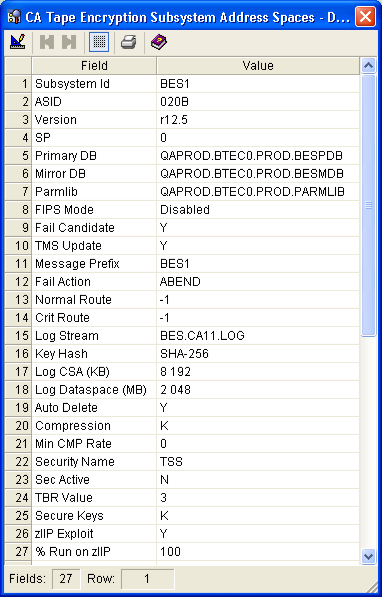
Note: You can get online help that defines each field by clicking the help icon  .
.
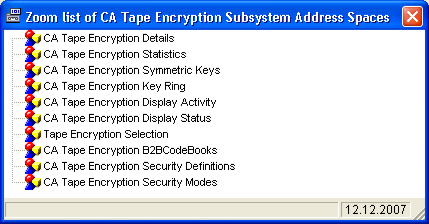
The Zoom list of Tape Encryption Subsystems dialog opens. The Zoom list allows you to select a Tape Encryption object and open a window that displays only the data associated with the selected subsystem, as shown in the following sample:
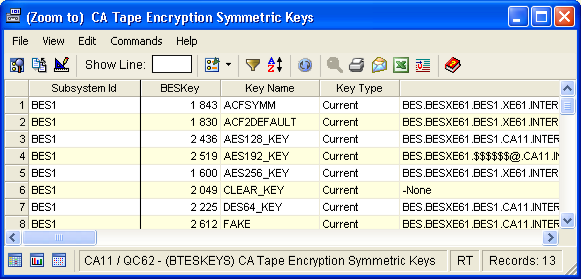
The Zoom to Tape Encryption Symmetric Keys window opens, displaying the symmetric keys associated with the selected subsystem, as shown in the following sample:
You can also use the Filter dialog to display and select elements for a single subsystem. Use the Filter icon  on the menu bar to open the Filter dialog.
| Copyright © 2010 CA. All rights reserved. | Tell Technical Publications how we can improve this information |