Auditing CA Tape Encryption › Access CA Tape Encryption Objects from the Windows Client
Access CA Tape Encryption Objects from the Windows Client
All CA Tape Encryption objects are included in the Windows Client Object Tree. They are contained within the Tape Resource Management folder that is visible when the Object Tree is opened.
Before you begin, make sure that the z/OS host that you want to connect to is up-and-running.
To access CA Tape Encryption objects
- Open the Windows Client from the Start Menu by clicking Programs, CA, CA Resource Manager, and then selecting Windows Client.
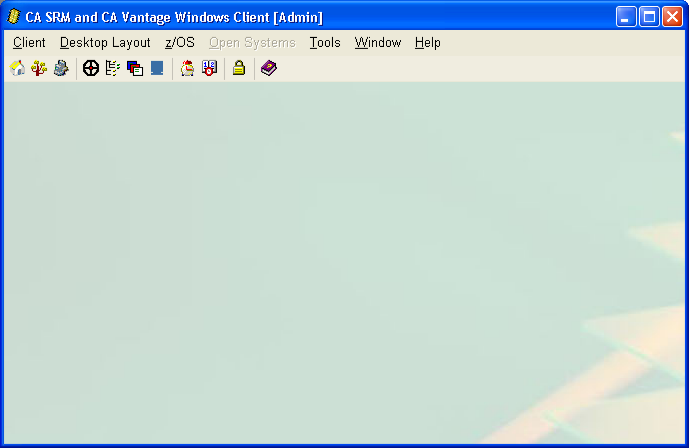
- The Windows Client opens, as shown in the following sample:
- From the toolbar, click the Host List icon
 .
.
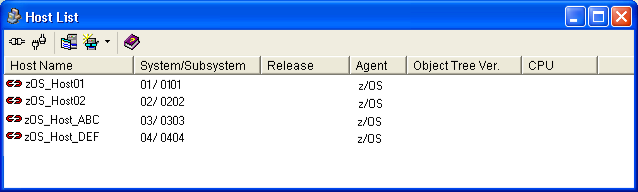
- The Host List dialog opens, as shown in the following sample:
- Select the z/OS host that you want to connect to and click the Connect icon
 .
.
- CA GMI collects information from the z/OS host definition that you have chosen to connect to. Depending on how you have set up the Host Definition selected you may need to log on as described in the procedure To log in to a z/OS host, once you are connected to the host continue to step 4.
- From the Windows Client Admin window, click the Object Tree icon
 to open the Object Tree.
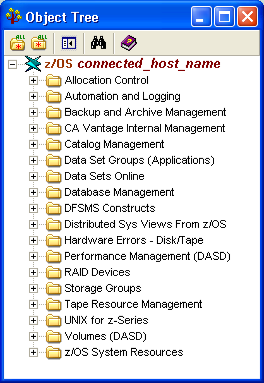
The Object Tree dialog opens, as shown in the following sample:
- Expand the Tape Resource Management folder to display the CA Tape Encryption folder and, in turn, expand it to display the CA Tape Encryption objects, as shown in the following sample:
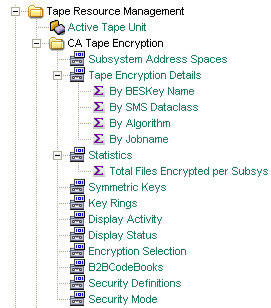
For descriptions of the CA Tape Encryption objects, see the CA Tape Encryption Object List section in the chapter, “Introducing CA Tape Encryption.”

