

Managing Sybase Instances › Registering Sybase Instances › Using the CA SRM Sybase Registration Wizard
Using the CA SRM Sybase Registration Wizard
You must run the CA SRM Sybase Registration Wizard from the computer on which the application server is installed. You can collect data from any managed computer that has Sybase software installed.
To run the Sybase Registration Wizard, follow these steps:
- From the Open Systems menu of the Windows Client, select Register, Sybase. You can also start this wizard by selecting Configuration, Register from the Sybase table.
- Select a computer from the drop-down list. The wizard creates this list by searching the Computers table for machines that have Sybase ODBC already installed.
Note: You can only use a Windows machine as the Sybase proxy collector.
- Select the Sybase instance. The instances listed are the defined data source names (DSN) from the proxy collector that you selected in the previous dialog. Type the user name and password that corresponds with the selected DSN:
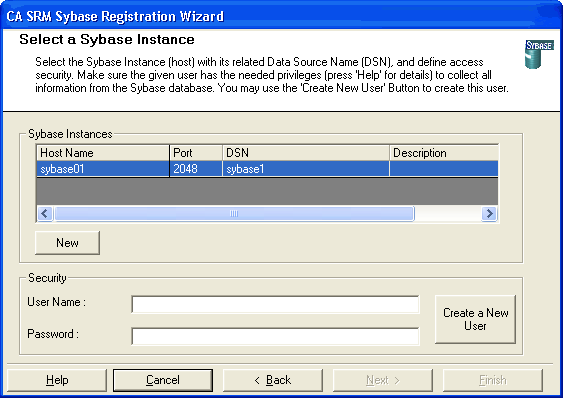
- (Optional) Create a DSN by clicking the New button:
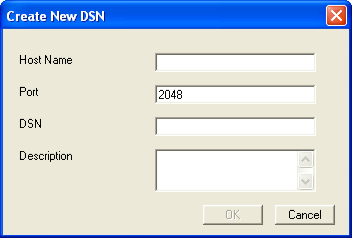
Enter the following information:
- Host Name—The name of the host where the Sybase server is running.
- Port—The port used by the target instance on this server.
- DSN—The DSN name that you defined on the proxy machine to connect to this specified instance.
- Description—Add text to describe this connection.
You cannot create a DSN when you use Sybase 15.
- (Optional) Click Create a New User button to create a user in the Sybase instance. Enter the system security user name and password for the proxy collector. This needs to be a Sybase administrator’s user name and password. Enter the user name and password for the Sybase instance:
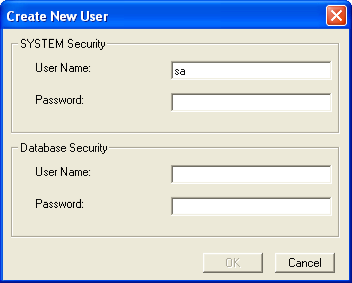
Note: The database password maximum length is 30 characters.
- In the Setting Properties dialog:
- Choose the frequency with which you want to update the Sybase data.
- Check the Detailed box if you want to collect detailed data.
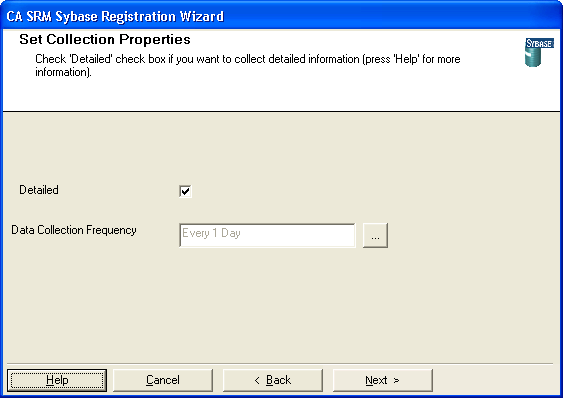
Note: Collecting detailed information increases the time required by the data collection service.
- Edit the fields in this dialog if you want to add a different location, organization, and contact:
- Location-Lets you attach a geographic location to the computer or server. Select a location from the drop-down list. You can also click New Location to add the details of the new location in the Create New Location dialog. Click OK to exit the dialog.
- Organization- Lets you attach organization to the computer or server. Select an organization from the drop-down list. You can also click New Organization to add the details of the new organization in the Create New Organization dialog. Click OK to exit the dialog.
- Contact- Lets you add a contact. Click New Contact to add a contact using the Create New Contact dialog. Enter the name, telephone number, and email address of the new contact. You can access your default address book by clicking the To: Button and select the email address from there.
Note: You can also add new contacts by clicking New Contact in the Create New Location dialog or Create New Organization dialog.
- Click Register.
CA SRM registers the server.
- Add the following lines to the Sybase server startup script:
use tempdb
go
sp_addalias <BSRMUSER>, dbo
go
The Sybase server is now configured for successful data collection.
Copyright © 2016 CA Technologies.
All rights reserved.
|
|