

Managing Network Storage Objects › Update the CA SRM Agent
Update the CA SRM Agent
When you register a managed object, CA SRM automatically installs an agent on the object (unless you register the object for Indirect Collection). If you want to update the agent details on the managed object, you can do this using the CA SRM Computer Software Update Wizard.
To update the CA SRM Agent software
- From the Open Systems menu of the CA SRM Windows Client, select Update Agent Software.
- Click Next on the Welcome dialog.
The Select Operating System dialog opens.
- Select the operating system on which the agent runs.
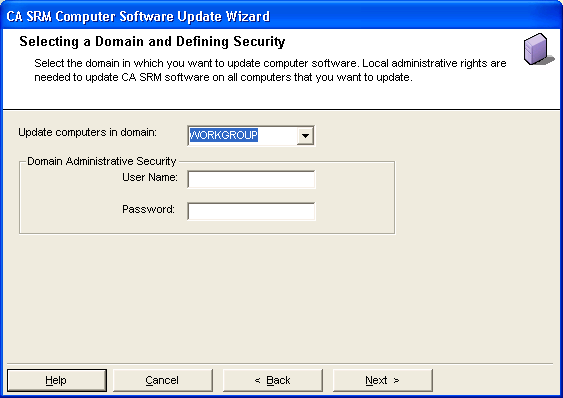
If you select Windows, the Selecting a Domain and Defining Security dialog opens. Go to Step 4.
If you select UNIX, the Security Scheme dialog opens. Go to Step 5.
- (Optional) If you selected Windows, select the domain that contains the computer you want to register from the drop-down list. Type the name and password of a user with Administrator privileges on the computer you want to update. Click Next. The Setting Data Collection Properties dialog opens.
- (Optional) If you selected UNIX, select whether the computer belongs to a security NIS. Click Next. The Setting Properties for standalone computers opens. Go to Step 7.
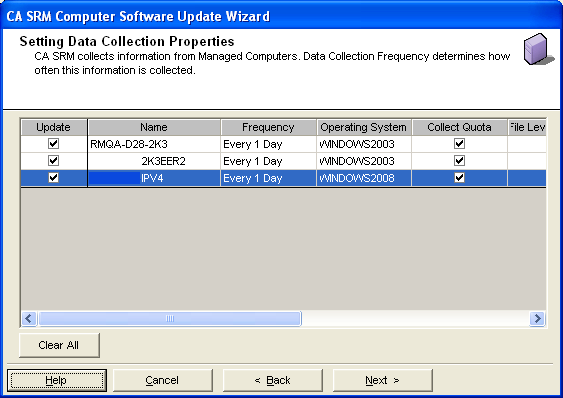
- (Optional) If you selected Windows, select the computer that you want to update. Update the data collection frequency and quota collection fields, if necessary. Click Next. The Summary dialog opens. Go to Step 9.
- (Optional) If you selected UNIX and you want to modify the properties, click Modify Computer Properties. The Modify Computer Properties dialog opens. Edit the properties, as required.
- Click OK.
The Summary dialog opens.
- Click Install, to update the agent software.
- Click Close to exit the CA SRM Computer Software Update Wizard.
Copyright © 2016 CA Technologies.
All rights reserved.
|
|