

Managing Network Storage Objects › Register Indirectly Collected Computers › Specify Indirect Collection-DFS
Specify Indirect Collection-DFS
To specify indirect collection
- From the Open Systems menu of the CA SRM Windows Client, select Register, Network Storage, and then Computers and Domains.
You can also start the CA SRM Computer Registration Wizard by selecting Configuration, Register from the Computers table.
- Click Next on the Welcome dialog.
The Select Operating System dialog opens.
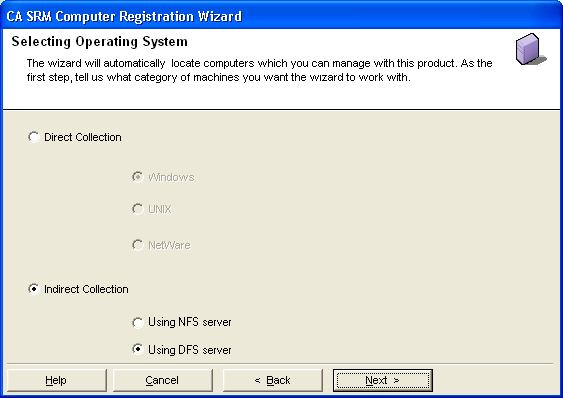
- Select Indirect Collection, DFS server, and click Next.
The Setting Properties for Indirectly-collected Computer dialog opens.
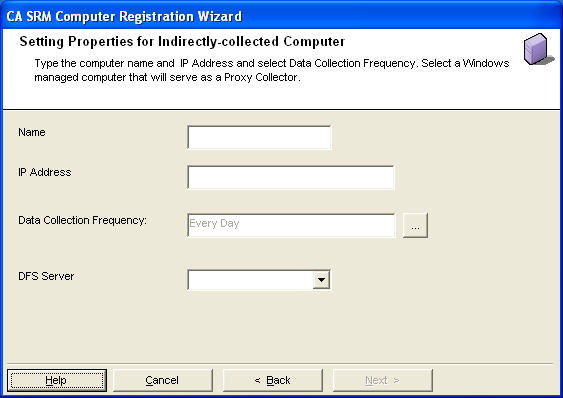
Type:
- Name—The name of the computer.
- IP Address—The IP address of the computer.
- Data Collection Frequency—By default, data gets collected once each day. To change the frequency, click the "…" button to open the Data Collection Frequency dialog.
- DFS Server—Select a Windows server from the drop-down list. All managed Windows servers are listed.
Note: You can only use one DFS server as a collector and proxy collector.
Copyright © 2016 CA Technologies.
All rights reserved.
|
|