

CA SRM Basic Techniques › Sending a Report by Email
Sending a Report by Email
The following example shows you how to create a report showing all Windows computers managed by CA SRM and send it by email. The report is sorted by the computers with the most occupied space. To do this, follow these steps:
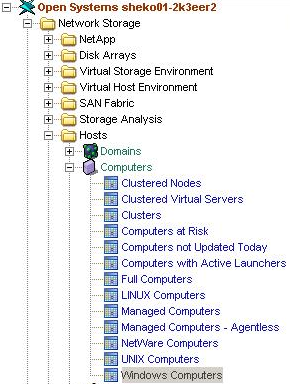
- From the Open Systems Object Tree, expand Network Storage, Hosts, Computers, and select Windows Computers, as shown in the following diagram:
Sort the Occupied Space column from highest to lowest by clicking on it. A down arrow appears indicating the sort: 
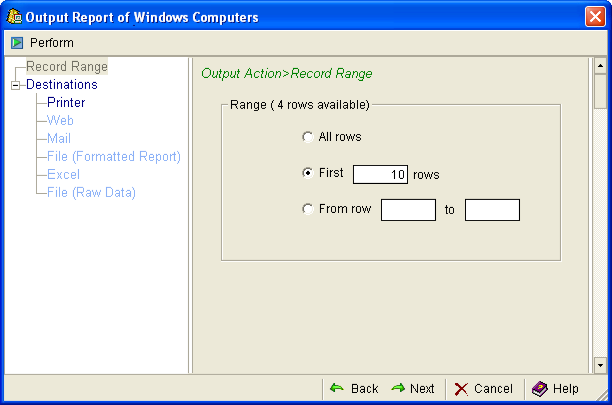
- From the Windows Computers table main menu, select File, Output Report. The Record Range dialog lets you select how many rows of the table view you want to include in your report. To create a report showing the first 10 computers with the most occupied space, select First and enter 10 in the Rows text box:
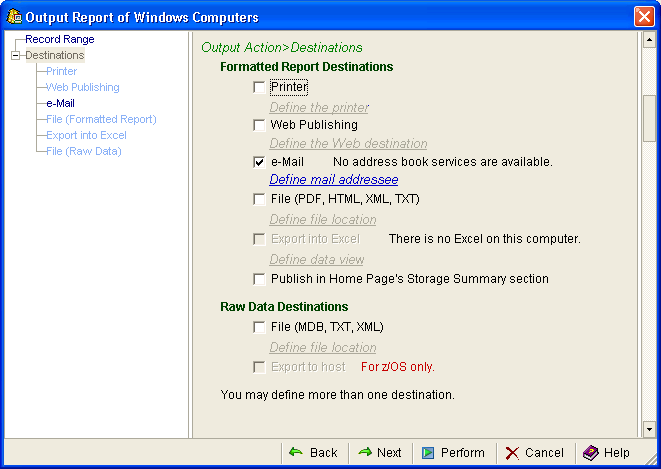
- Click Destinations and clear the Printer check box (selected by default) and check the e-Mail box. The Mail destination is now active. Select it:
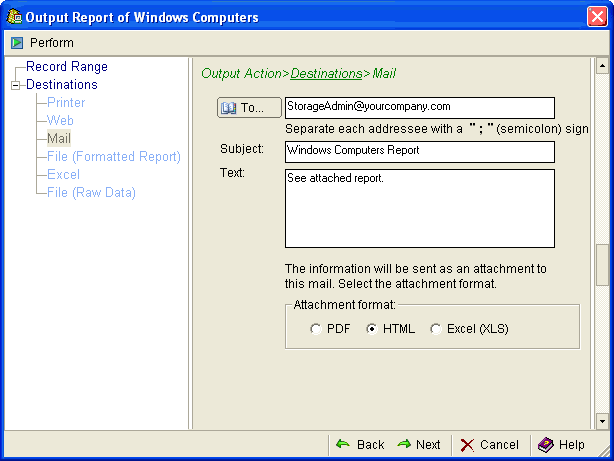
- In the Mail dialog:
- Enter the email addresses of the people to whom you want to send your message, separating each entry with a semicolon (";"). To access your default Address Book, click the To… button.
- Enter a subject in the Subject text box and a message in the Text text box.
- Select a format in which to send the report. You can email reports in Adobe PDF, HTML, or as an Excel spreadsheet:
- Click Perform. The service generates the report and sends it to the recipients you specified.
Copyright © 2016 CA Technologies.
All rights reserved.
|
|