

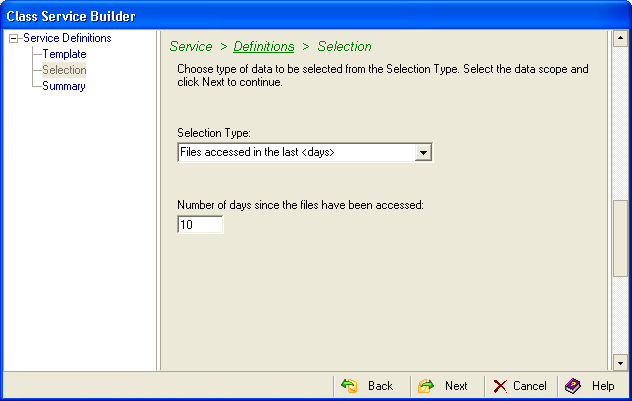
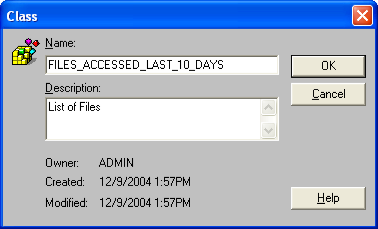
This example shows you how to build a files class that collects data about files accessed in the previous 10 days. To do this, follow these steps:
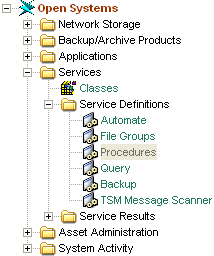
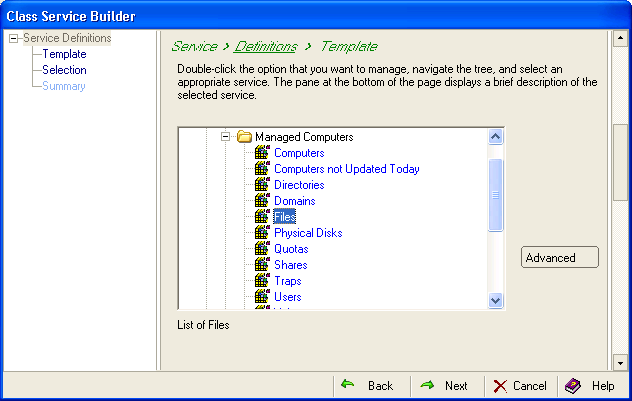
From the Configuration menu, select New. Each folder in the dialog contains a number of predefined templates you can use to easily construct a Class. For example, expand the Network Storage folder and then Managed Computers. You can build a Class based on Computers, Files, and so on. For this example select Files:
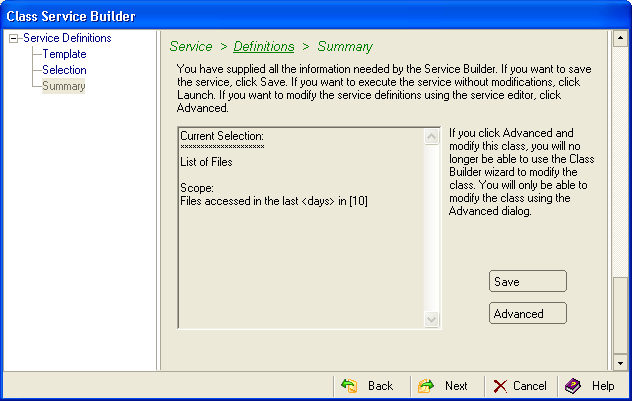
Note: If you make changes in the Advanced dialog, you will have to use it for all of your future changes. After you use the Advanced dialog for a service, you can no longer edit the service in the Service Builder Wizard.
|
Copyright © 2016 CA Technologies.
All rights reserved.
|
|